
AI Sticker Generator for Chat Packs, Merch and Brands
Type what the sticker should show. A mascot, a reaction, a pet, a badge for your shop. Our image generator builds it with a bold outline and flat color so the shape still reads at thumbnail size. Render one sticker or a matching set, then download and pack it for the app or product it belongs to.
Start with a real example
These are the prompts paired with this page’s examples. Open the generator, choose an example, then adjust one detail at a time.
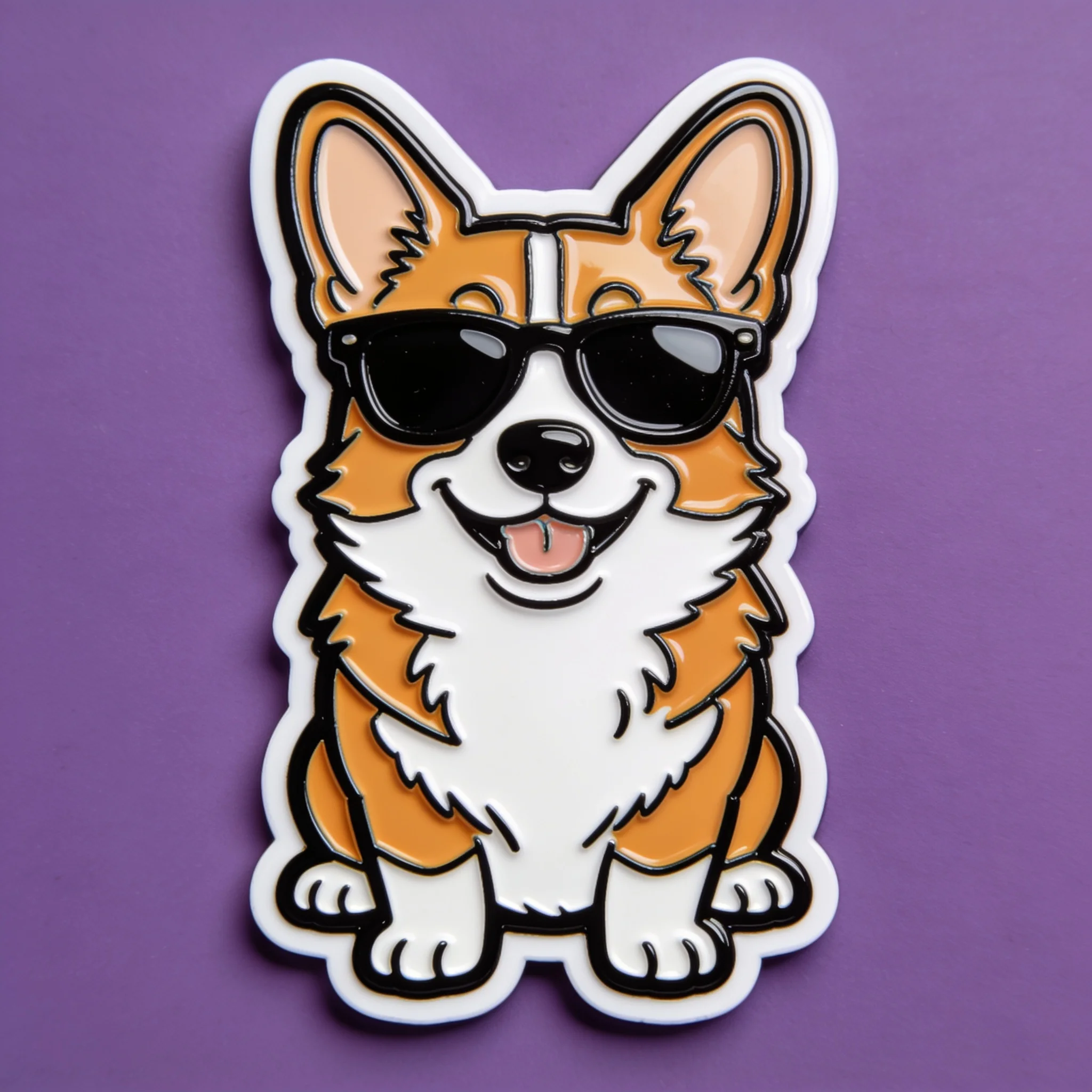
Example prompt 01
A cheerful corgi mascot wearing oversized sunglasses, thick white sticker border, bold black outlines, glossy enamel pin finish, isolated on a flat violet background, centered, clean product-quality vector illustration
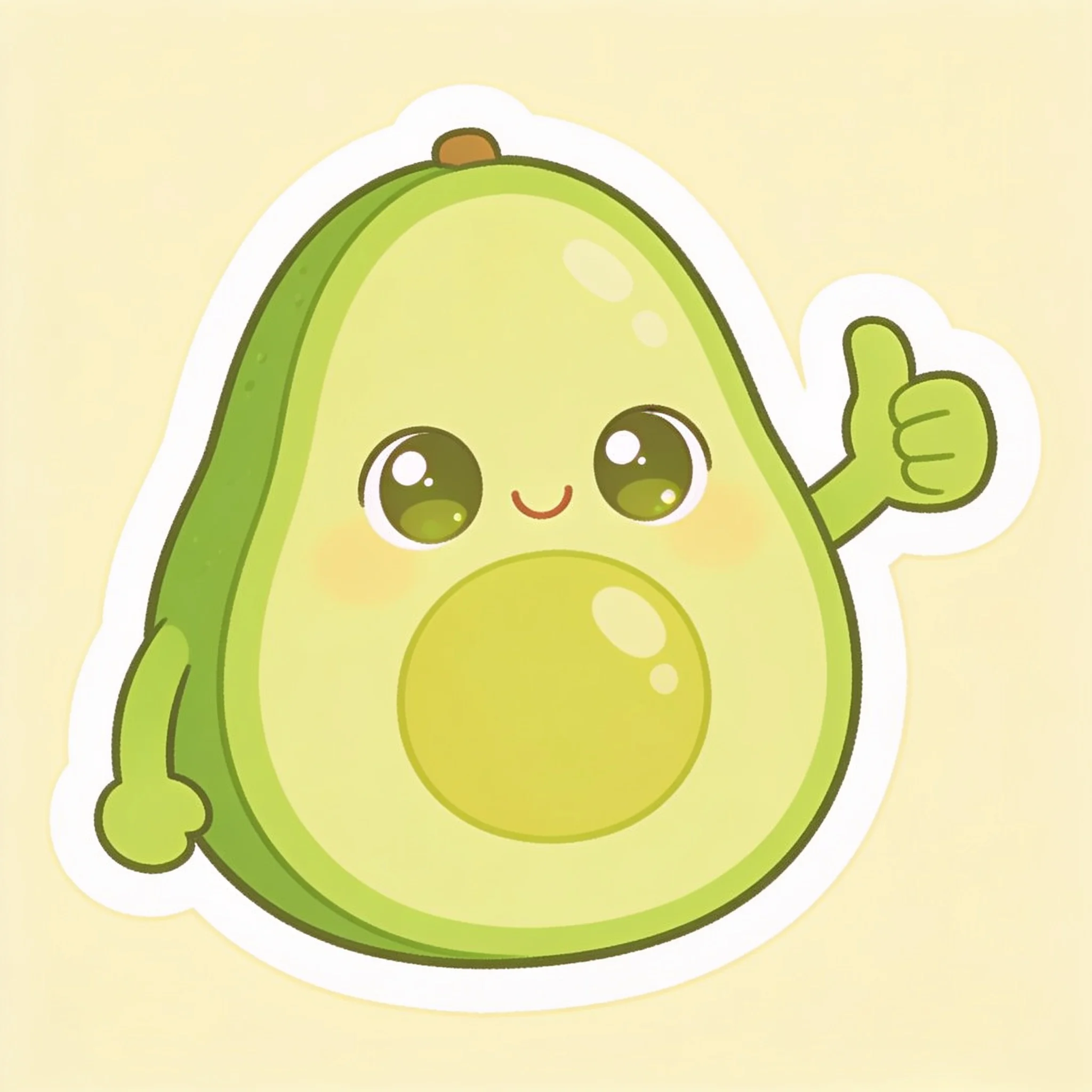
Example prompt 02
A kawaii avocado character giving a thumbs up, pastel green palette, thick white die-cut border, soft cel shading, centered on a flat cream background, cheerful sticker art
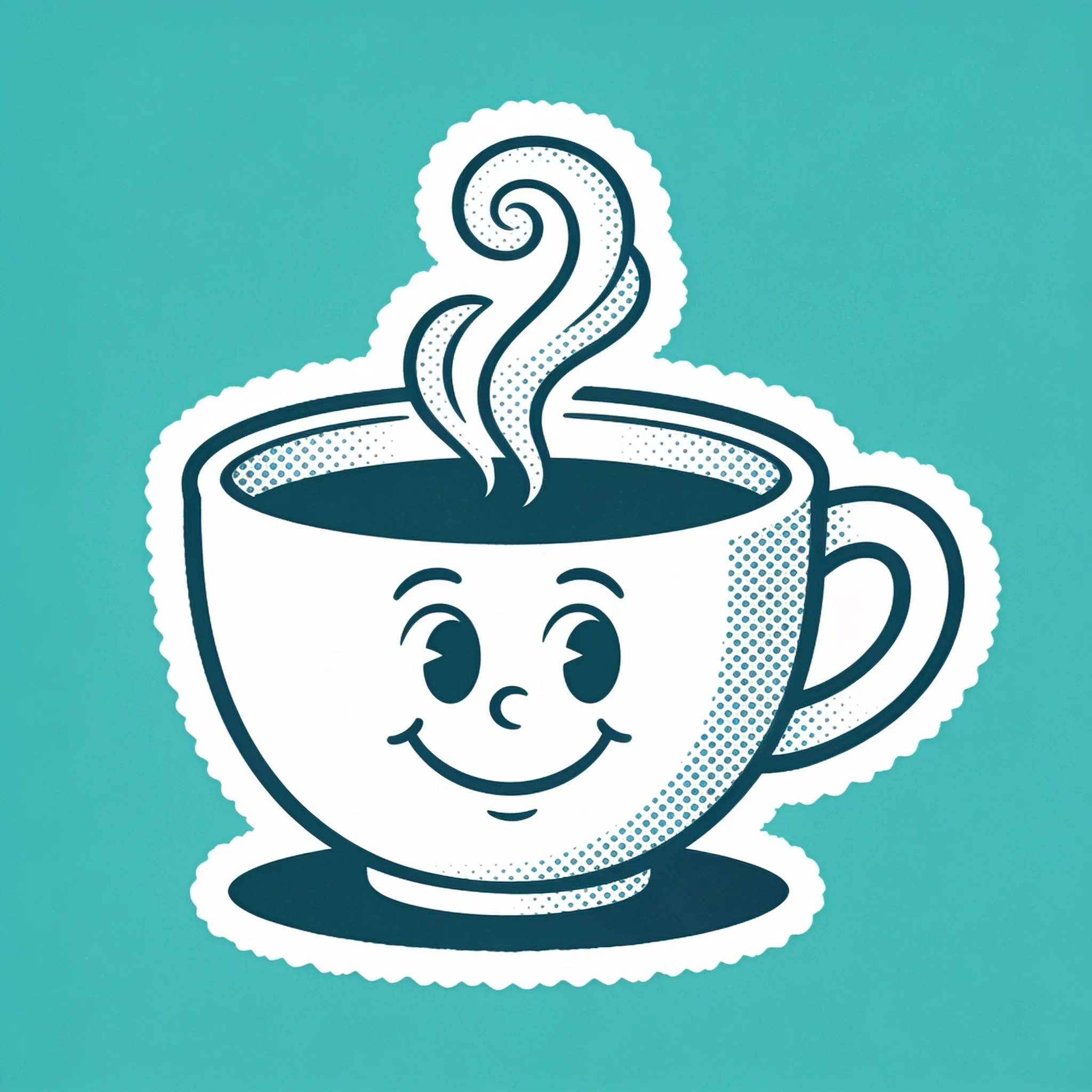
Example prompt 03
A retro 1950s diner coffee cup mascot with a smiling face and steam swirls, halftone dots, thick white sticker outline, flat teal background, centered badge composition, vintage cartoon style
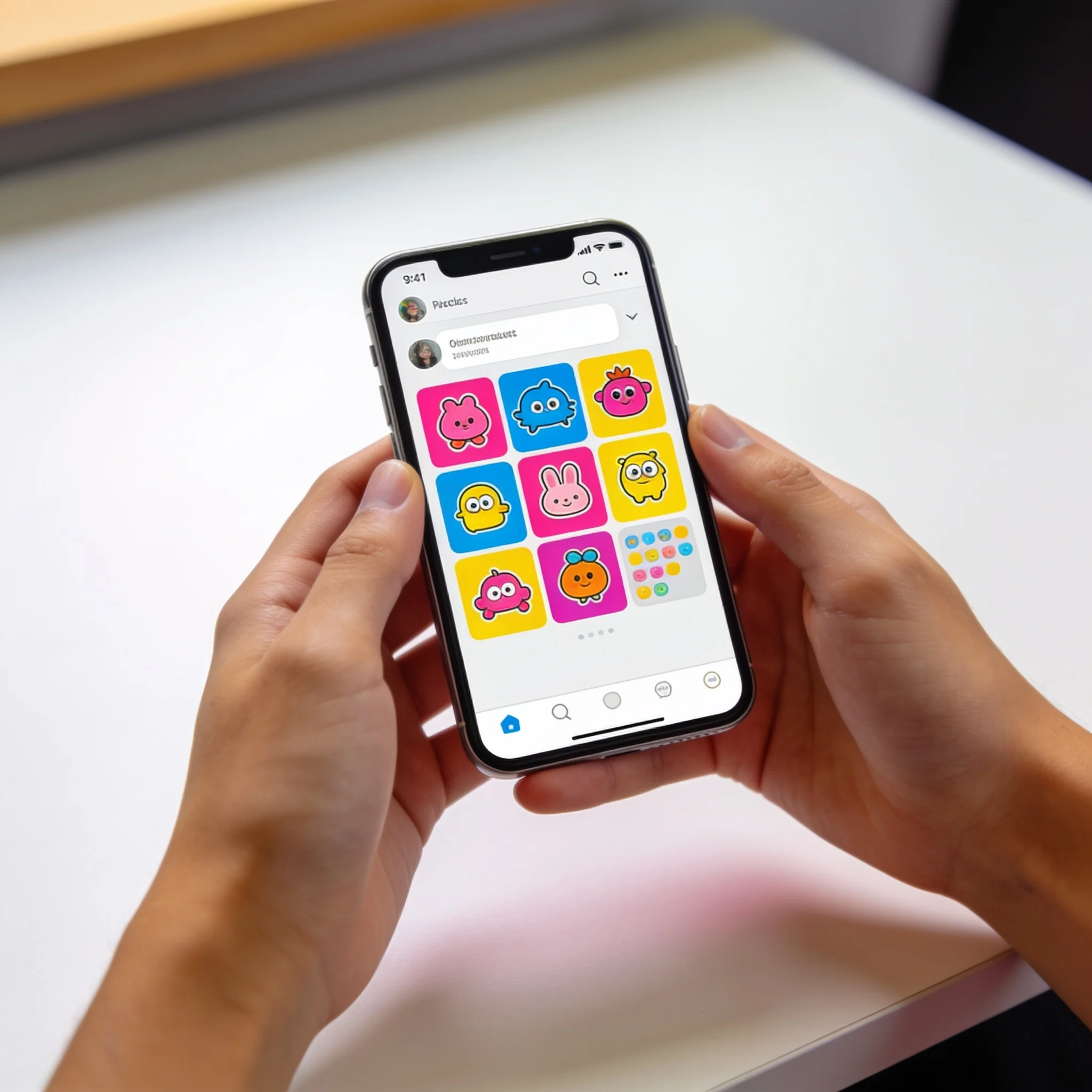
A generated set arranged as chat stickers, all sharing one outline weight and palette
Why Make Stickers With AI?
Stickers are a small format with strict rules. The subject has to read at 100 pixels wide. The outline has to hold after the image is scaled down and compressed. Most art tools give you a blank canvas and leave those decisions to you. An AI sticker generator flips the order. You describe the character and the finish, and the render already looks like a sticker. Bold edges, flat color blocks, simple shading, one clear subject in the middle. From there you can push a palette, swap an expression, or repeat the same style across a pack. The same tool works as a custom sticker maker when you need one image and as a pack builder when you need eight. We built this page around one job: getting a usable sticker image fast, without learning a vector editor first. That is why the prompt guidance below focuses on wording that changes the outline and the palette, not on art theory. A sticker maker from photo is the other common path, and it works too. Upload the image, ask for a cartoon restyle, and keep the silhouette the model reads from the reference.
What You Get
Prompt or Reference Photo
Write a description from scratch, or upload a photo so the render keeps the subject's silhouette, markings and pose. The reference path is what makes this a practical sticker maker from photo for pets, products and portraits. Results are much closer on the first try when the model can see the shape it is restyling.
Sticker-Style Finishing
Ask for a thick outline, flat fills and a plain background, and the output arrives shaped for sticker use instead of looking like a poster shrunk to 200 pixels.
Sets That Match
Reuse the same prompt skeleton and palette across several renders. Line weight and color stay close, which is what makes six images read as one pack.
Up to 4K Output
Render at 1K, 2K or 4K depending on the plan and the final use. Small chat stickers need less. A printed sheet or a shirt graphic needs the larger file.
Free Trial, No Account
Trial generations run without a signup, so you can test a prompt and check the style before creating an account or buying credits.
Images You Keep
Download the renders you make and use them in your own projects. Make sure any character, logo or likeness in your prompt is yours to use before you publish or sell.
How It Works
Describe the Sticker
Name the subject, the expression, the palette and the finish. Four details are enough to start. Add words like 'thick white border' and 'flat background' if you want a classic sticker look.
Add a Reference If You Have One
Upload a photo of the pet, product or face you want to keep recognizable. The render follows the reference more closely than a text-only prompt can.
Pick a Size and Render
Choose an output size and render. Compare a couple of results, then adjust one detail at a time instead of rewriting the whole prompt.
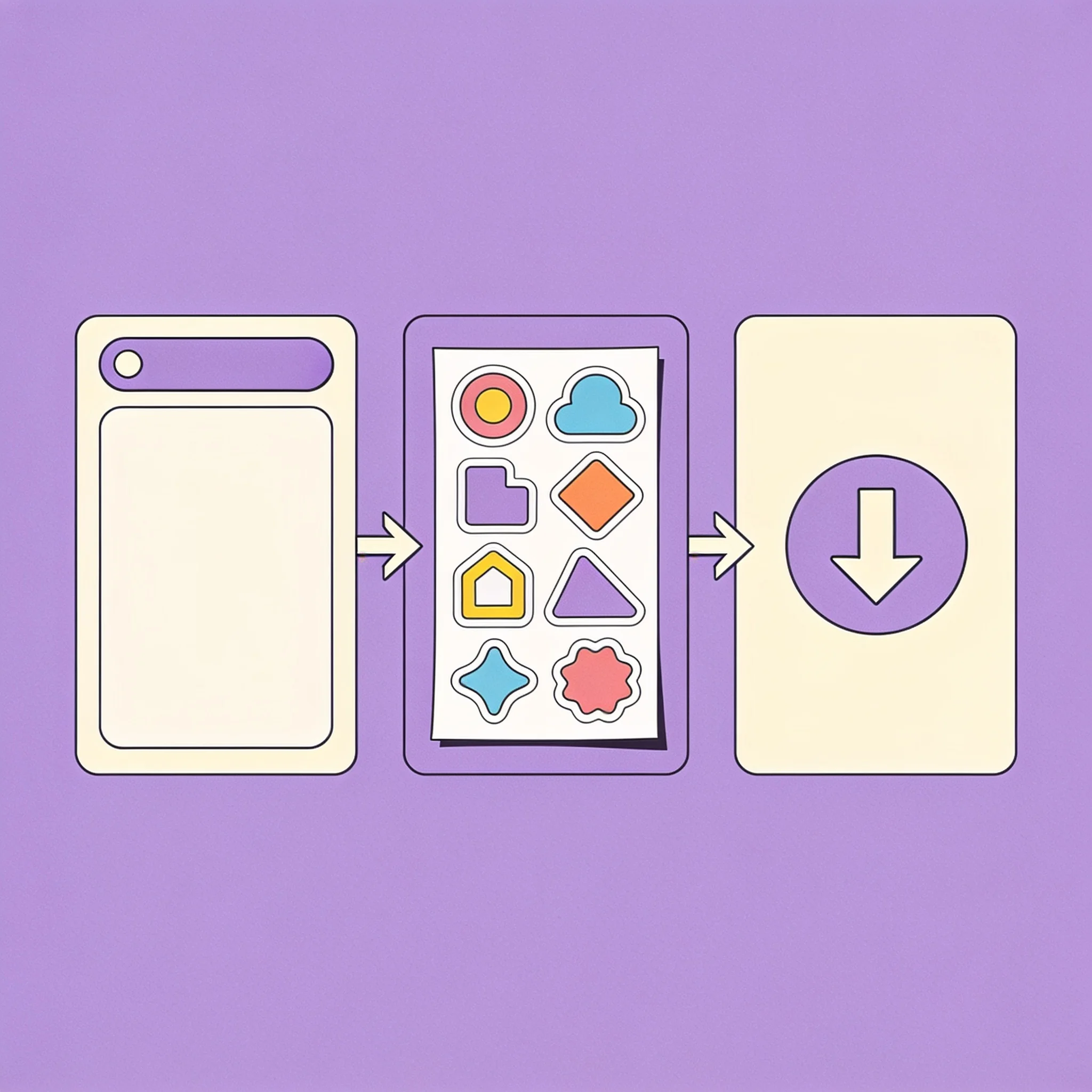
Download and Pack
Save the image you want. Repeat with the same palette for the rest of the set, then place the files in your chat app, print sheet or store listing.
What People Make With It
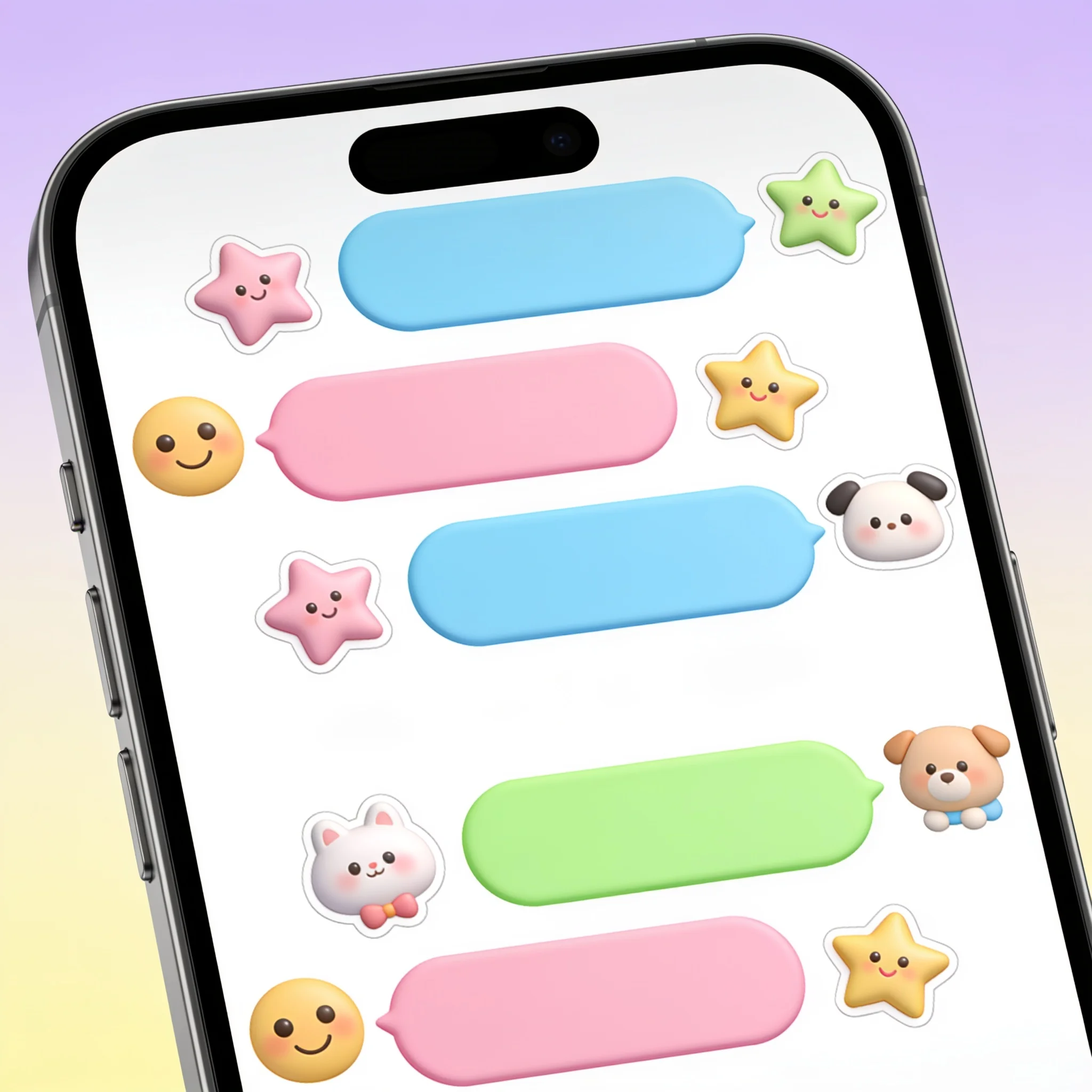
Chat and Community Packs
A handful of expressions in one style makes a pack people actually use. Generate a greeting, a laugh, a shrug and a goodbye, then keep the same outline and colors so the set feels designed rather than assembled.
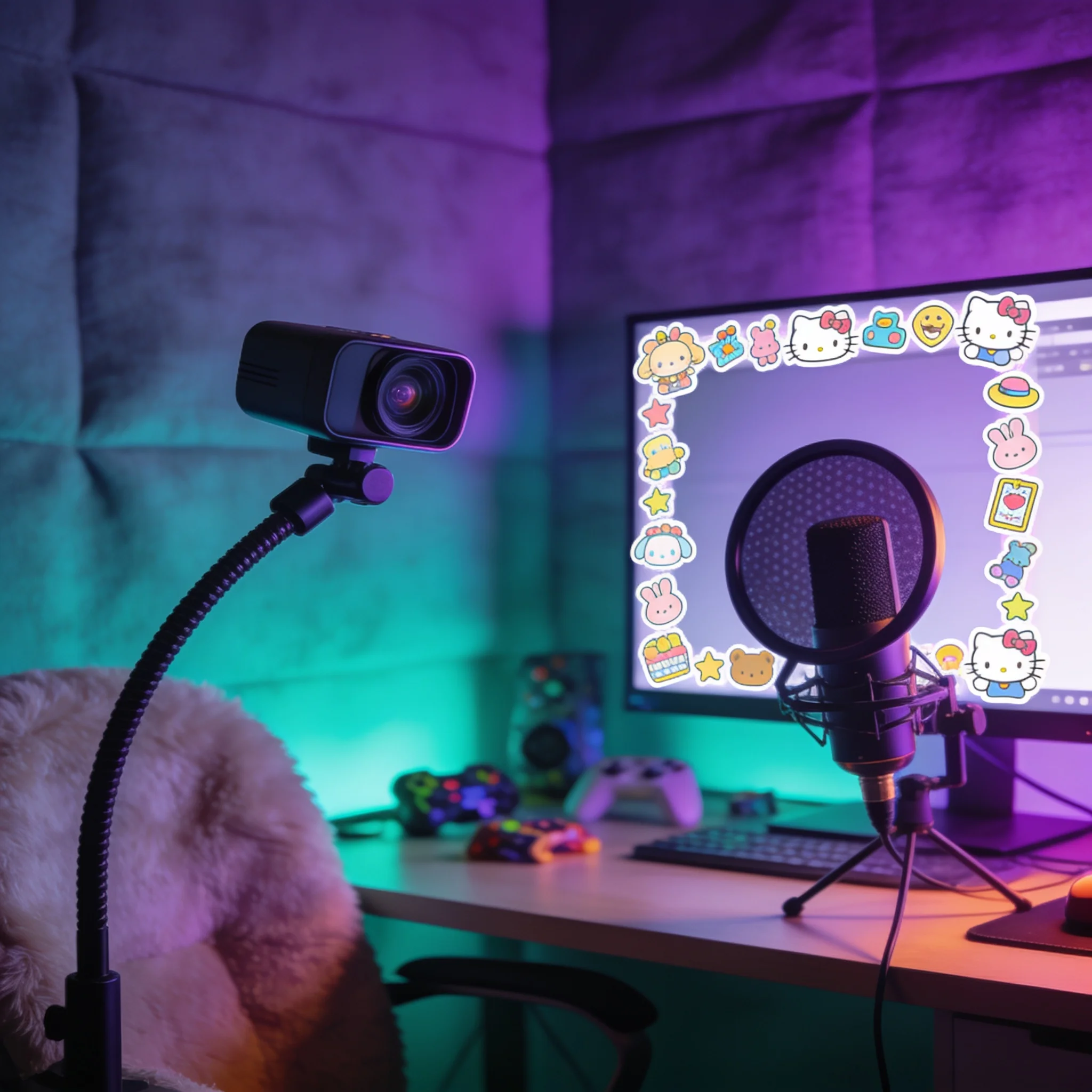
Streamer Emotes and Overlays
Small, high-contrast characters survive the size limits that platforms apply to emotes and badges. Render at 4K, then downscale for the slot you need. The flat color style also cuts cleanly when a platform asks for a plain background.
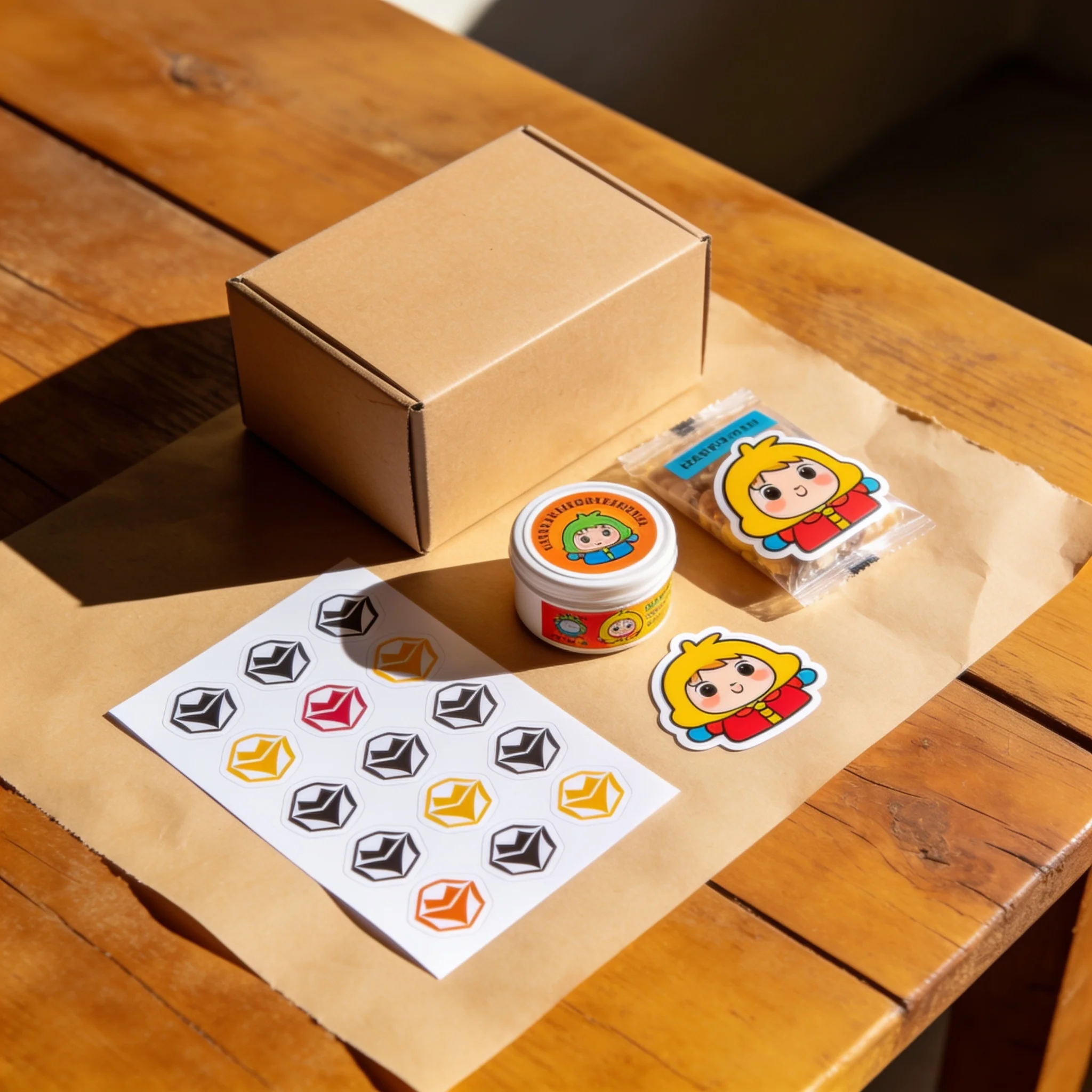
Small-Brand Merch and Packaging
A mascot sticker turns a plain box into something worth keeping. Render a badge version for labels and a full-character version for the sticker sheet, both from the same prompt.
Gifts and Keepsakes
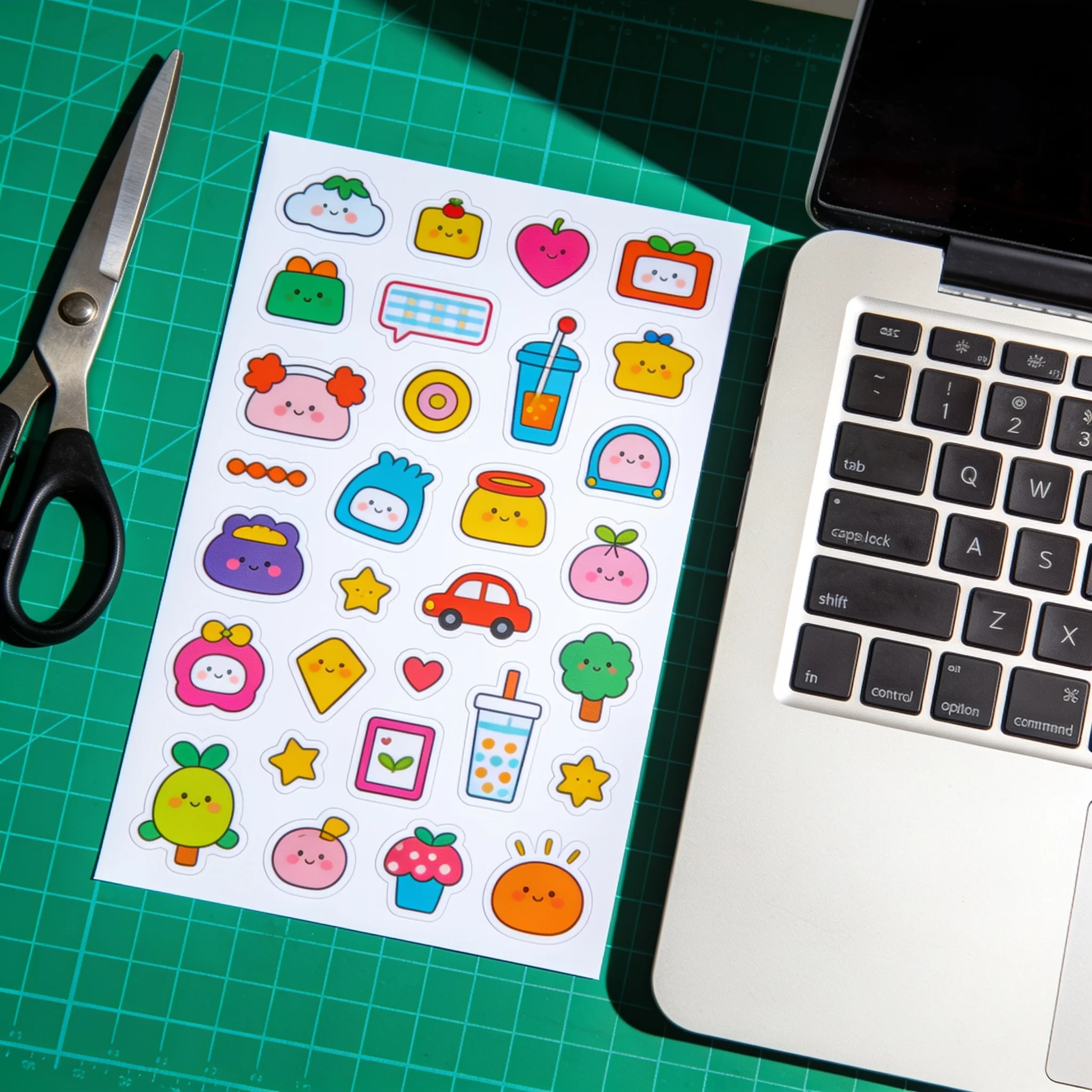
Upload a photo of a pet or a family member and ask for a cartoon restyle. The result works as a laptop sticker, a printed card or a message in the group chat where the joke started.
Explore related tools
Choose the tool that matches your next step.
Prompt Tips That Change the Output
Small wording changes move the result more than long descriptions do. Start here, then adjust one thing per render. An AI sticker maker responds well to short, concrete instructions and poorly to stacked adjectives, so treat each line below as a test rather than a rule.
Name the Expression and the Action
'A corgi waving one paw with a happy smile' gives the model something to draw. 'A cute dog' leaves too much to chance and produces a generic pose.
Limit the Palette
Pick three to five colors and state them. A tighter palette reads better at small sizes and makes separate renders look related.
Ask for the Outline Directly
Words like 'thick white border', 'bold black outlines' and 'die-cut shape' push the image toward sticker construction. Without them you get an illustration that needs extra work.
Keep the Background Flat
A solid, uncluttered background is easier to remove later than a photo scene. It also keeps the subject from blending into the edges of the sticker.
Ready to Make Your First Sticker?
Describe a character and render a sticker-style image in the next minute. No signup and no credit card to start.