
Start From a Photo. Get a New Image.
Upload a picture, describe the change, and keep the parts that matter. No account needed to try.
The AI image generator from image reads your upload as a reference, not a template. Restyle a portrait, swap a background, or combine up to 14 references into one new scene. Output runs up to 4K, and any still can become a short video.
Drag & drop an image, or click to upload
JPG, PNG, WebP, TIFF — up to 20MB
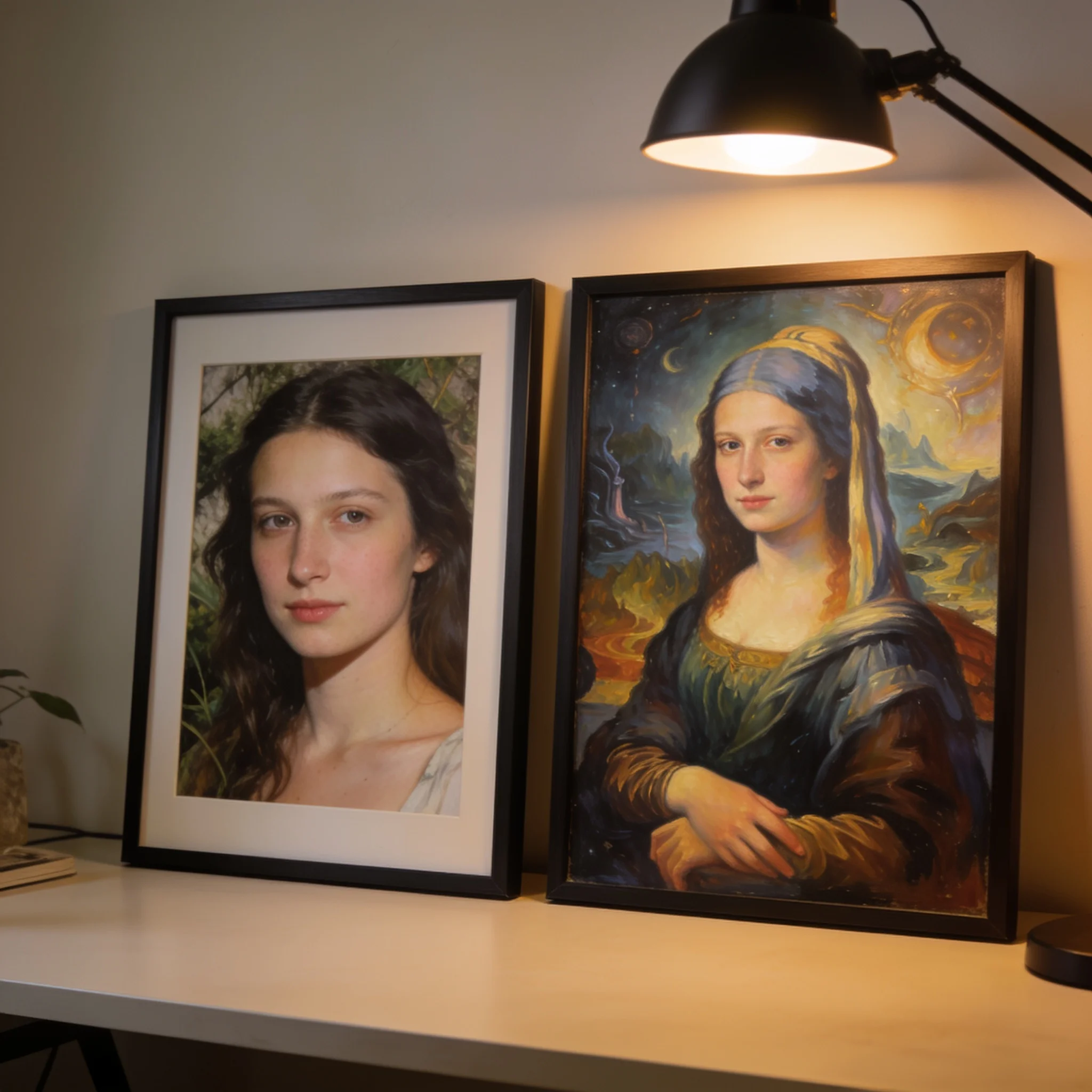
One reference photo, two directions. The face and pose stay put.
An Image Generator That Starts Where Your Photo Ends
Text prompts can only guess what you had in mind. A reference image shows the model the subject, the light, and the framing before you type a single word. It also settles proportion and color, which matters when the subject is a product that customers already recognize. That is the whole idea behind image to image AI generation: the photo carries the structure, and the prompt decides what changes. Our generator runs in three modes. Text to image builds a scene from scratch. Image to image takes one reference and edits it. Blend mode takes 2 to 14 references and merges them, which is how people put one character into three different rooms without losing the face. You can switch modes at any time, and the toggle sits above the prompt box. We tested the same 12 reference photos across four styles to see where edits drift. Background replacements held identity well. Heavy restyles, such as a photo to oil painting, kept the pose but softened small details like earrings and freckles. Knowing that up front saves a second render, and it is why the tips below ask you to name what must stay before you describe what should change. Professional workflows benefit from that predictability, because a recognizable reference reduces the iterative cleanup usually required after a stylized render.
What You Get
Three Modes in One Tool
Text to image, image to image with a single reference, and blend with 2 to 14 references. Pick the mode that fits the job instead of stitching three separate apps together.
Your Subject Stays Recognizable
The reference locks the face, pose, and composition. Write one sentence about what must not change, and the model treats those as constraints rather than suggestions.
Up to 4K Output
Choose 1K, 2K, or 4K before you generate. A 4K render holds detail in fabric, hair, and text at print size, while 1K is enough for a quick concept check.
Seven Aspect Ratios
1:1, 4:3, 3:4, 16:9, 9:16, 3:2, and 2:3, plus adaptive sizing that follows the reference. Set the ratio first so the final crop needs no work.
Turn the Still Into Video
Send a finished image to the video step and describe the motion. Clips run 5 to 12 seconds at 480p, 720p, or 1080p, and most finish in about a minute.
Start Without an Account
The trial runs in the browser with no sign-up and no card. Create an account later to keep your history and add credits when you want more renders.
How to Generate an Image From an Image
Upload Your Reference
Drop in a JPG, PNG, WebP, GIF, BMP, or TIFF file. Each side must be between 300 and 6000 pixels, and the width-to-height ratio must fall between 0.4 and 2.5.
Say What Stays and What Changes
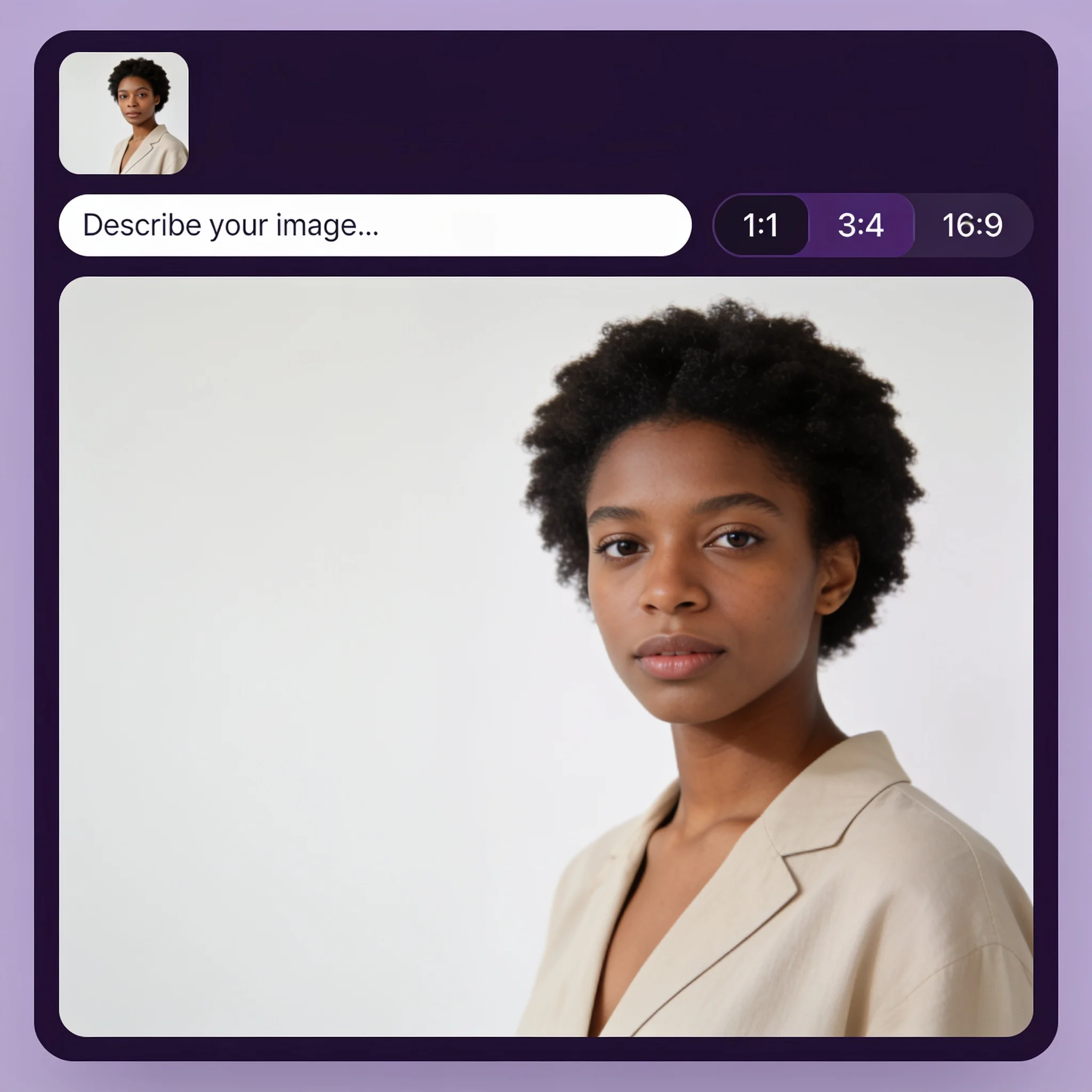
Write two short clauses. 'Keep the face and jacket, change the background to a rainy street at night' gives the model a clear boundary in one line. In an AI image to image edit, that boundary matters more than prompt length.
Pick a Ratio and Resolution
Match the frame to where the image will live. Profile pictures want 1:1, stories want 9:16, and banners want 16:9. Use adaptive to follow the reference crop.
Generate, Then Refine Once
Download the result or adjust the prompt and go again from the original photo. Starting from the source each time keeps the edit clean, while editing an edited image adds drift.
What People Actually Make
Product Shots Without a Studio
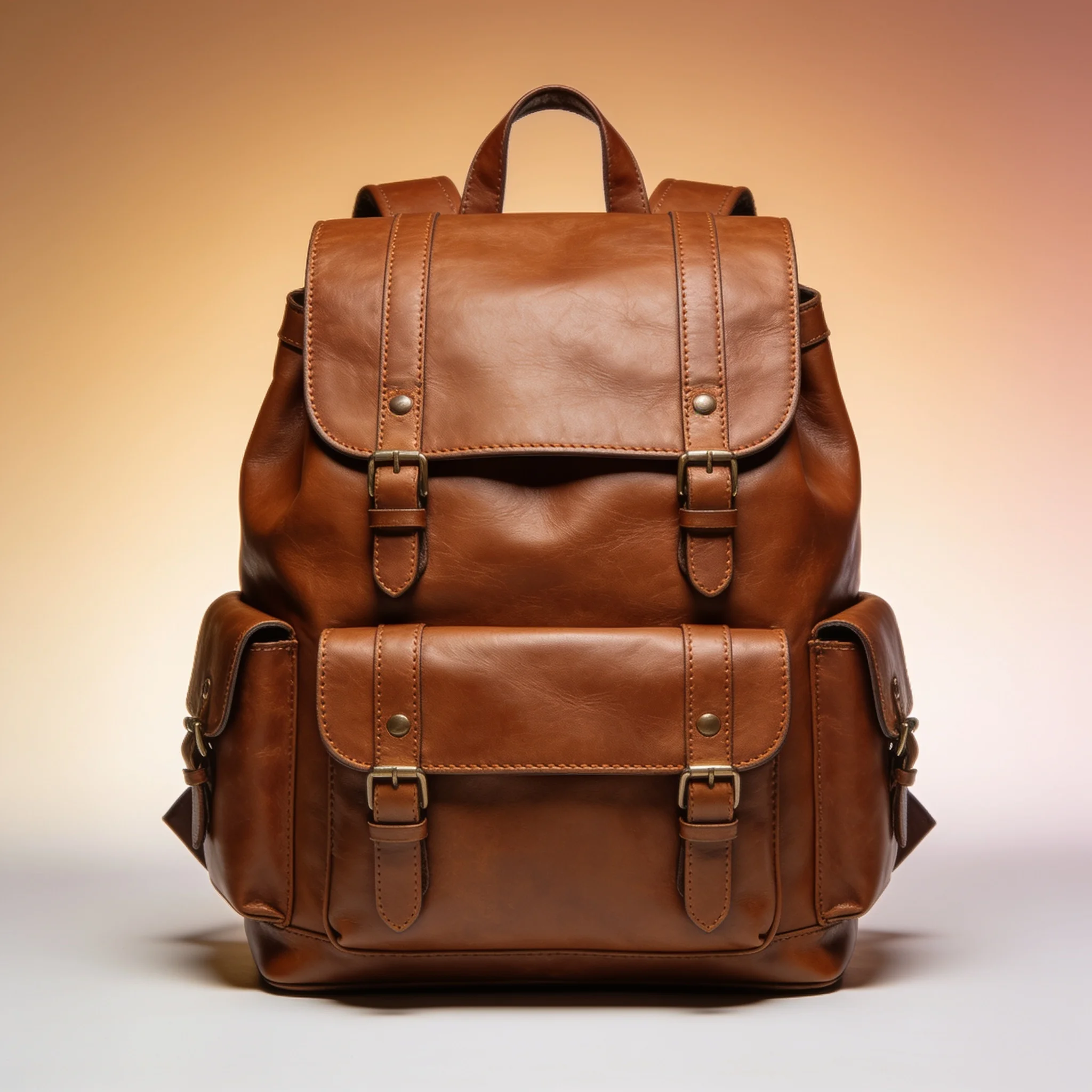
A phone photo of a bag or a bottle becomes a catalog image with a clean background and even light. Keep the product, replace the setting, and render at 4K for a store listing. Sellers often shoot one photo and generate six colorways from it.
Headshots That Match a Brand
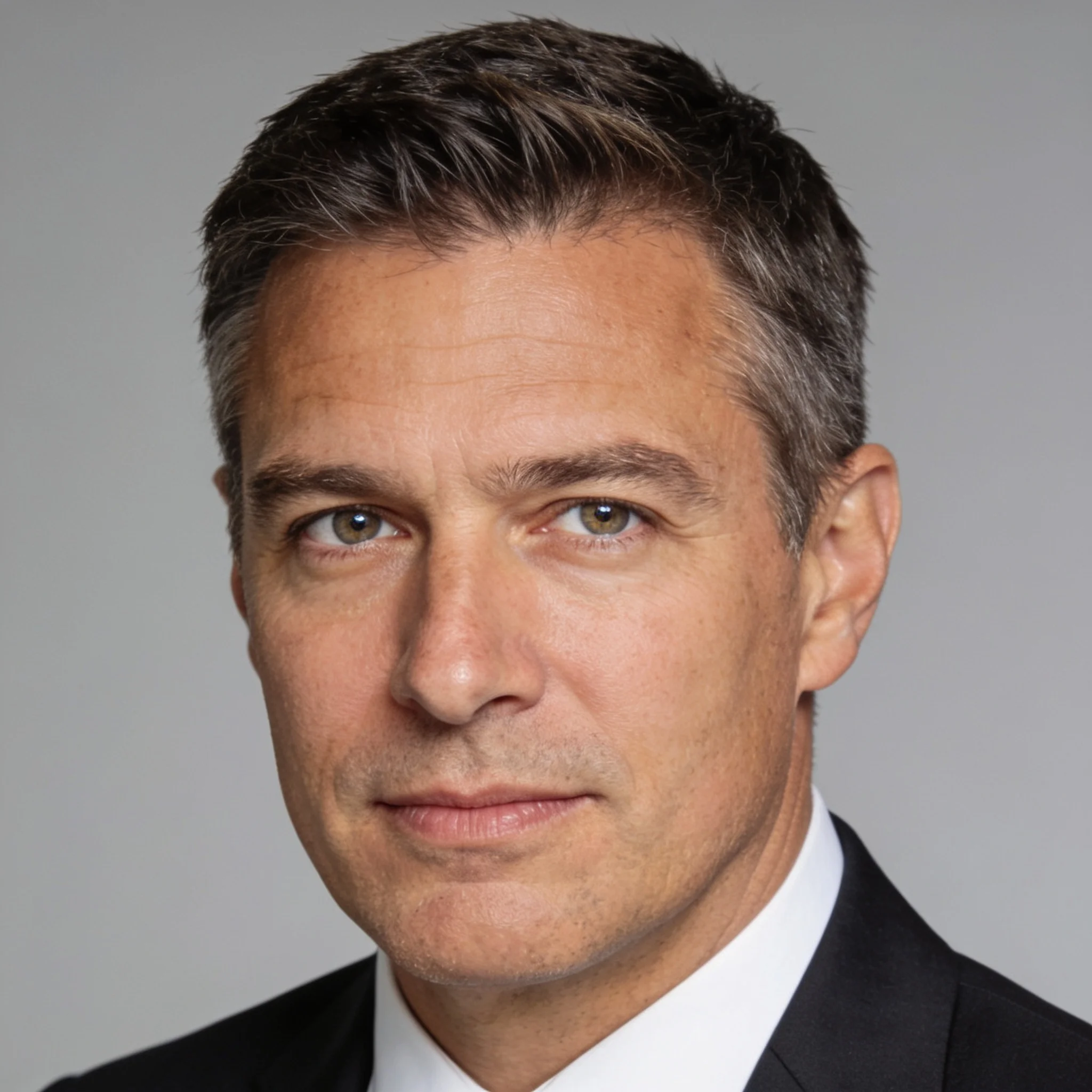
Teams use one reference portrait to place the same person against a grey backdrop, a warm office, or a plain wall. The face stays the same across every version, which is the hard part when you restyle each photo by hand.
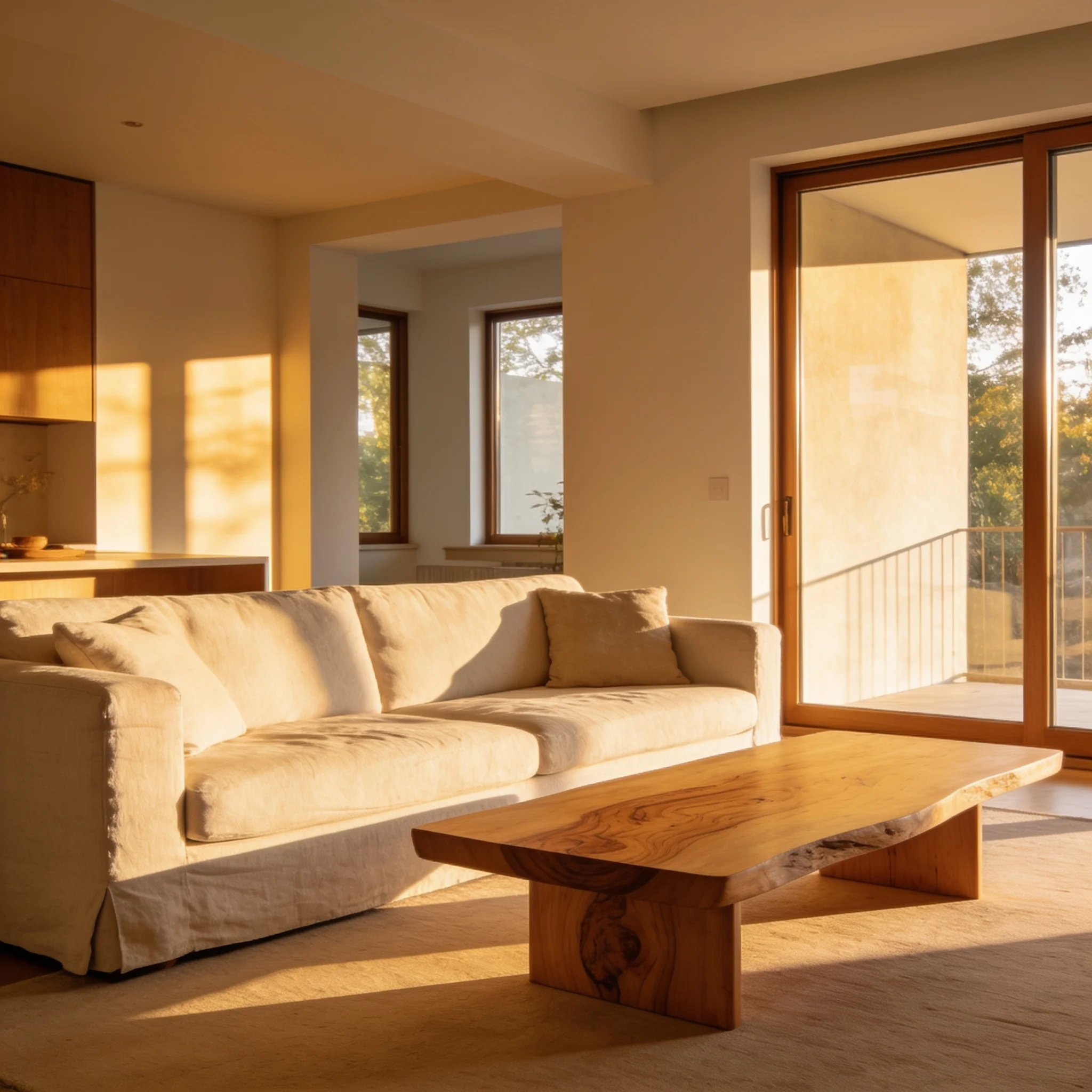
Interior Restaging
An empty room becomes a furnished one, or an old kitchen gets a new palette without moving a wall. Agents and hosts use this to show options fast. Keep the window line and the floor, and the new furniture still sits in the same room.
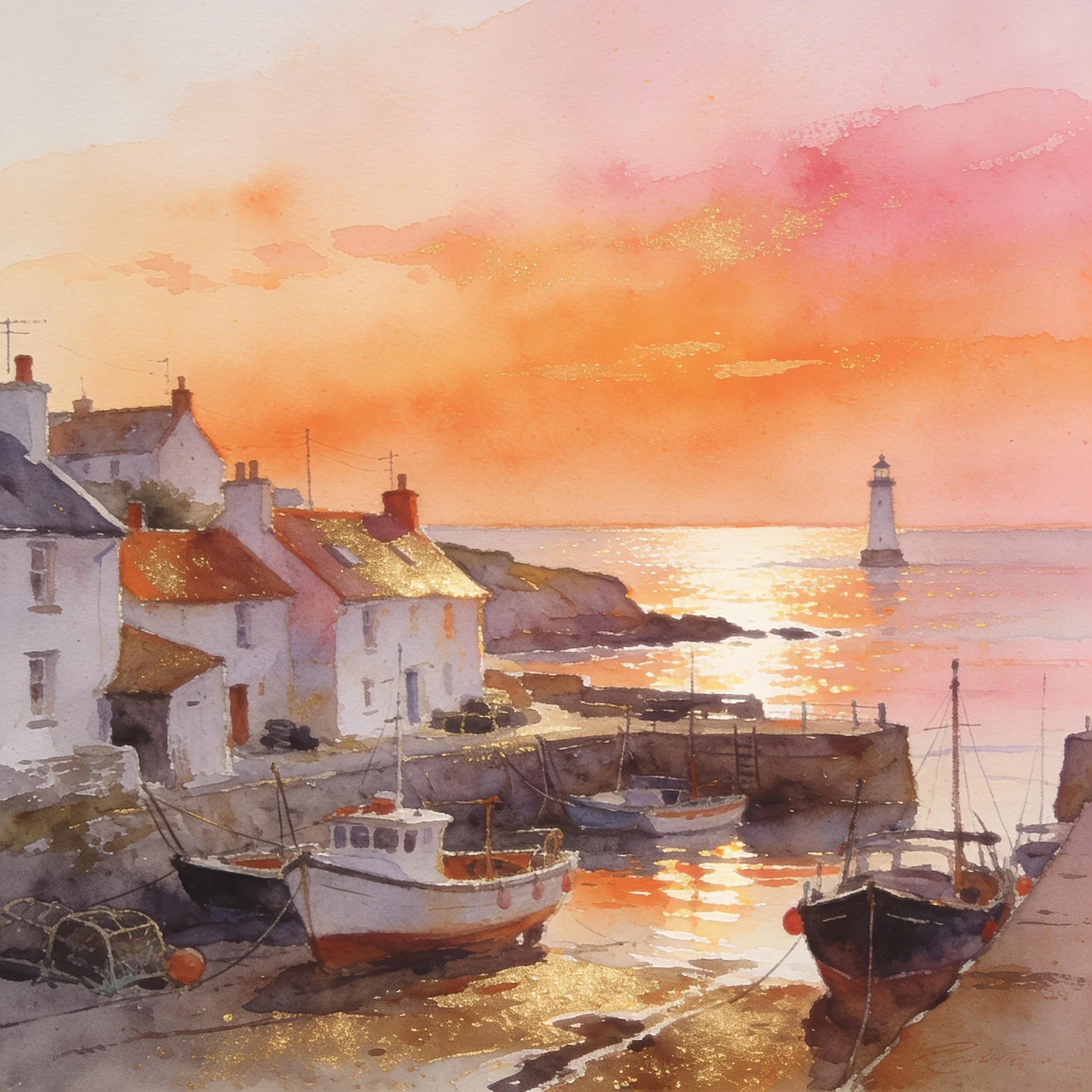
Art Styles From a Snapshot
A travel photo becomes a watercolor, a pencil sketch, or a poster print. The original composition carries over, so the result still looks like the place you saw, not a generic landscape built from text alone.
How DreamUtopia Compares
We compared the workflow against the image tools people most often open for this job. Specs below reflect what those products show today, checked in October 2026.
| Feature | DreamUtopia | Other image tools |
|---|---|---|
| Input modes | Text, 1 reference, or 2 to 14 references | Usually one reference, sometimes two |
| Output resolution | Up to 4K | 1024 to 2048 pixels on most plans |
| Aspect ratios | Seven ratios plus adaptive | Square and portrait on free tiers |
| Video from the result | Yes, 5 to 12 second clips | A separate tool or a paid add-on |
| Account required | No for the trial | Yes in most cases |
| Prompt length | Up to 2000 characters | Often capped near 300 characters |
| Watermark | Removed on paid plans | Present on most free output |
Prompts That Keep the Photo Intact
These six habits come from our own test renders. They work in every mode. Treat the image to image generator as a camera with a moving set: hold the lens still and change one prop at a time.
Name the Anchor First
Open with the parts that must survive: the face, the pose, the logo, the window line. Every word after that changes something. Reversing the order lets the model treat your subject as one more thing to redraw.
Change One Thing per Pass
A prompt that swaps the background, restyles the hair, and adds weather asks for three edits at once. Each one lowers the odds that the face survives. Split the work across two renders instead.
Describe Light, Not Mood
Warm low sun from the left is a direction the model can follow. Cinematic is a category it has to guess at. Name the source, the angle, and the color of the light when the result needs a specific feel.
Choose the Crop Before You Render
The aspect ratio changes what the model composes. Asking for a 9:16 frame after the fact cuts the subject or adds empty space. Pick the frame first and let the scene fill it.
Use the Original Every Time
When a render misses, edit the prompt and start from the source photo again. Feeding an edited image back in compounds small errors, and after three passes the subject stops resembling the person you uploaded.
Blend References With a Role
In blend mode, tell the model what each image is for: the first for the face, the second for the jacket, the third for the room. Two clear roles beat six unlabeled images, and fewer references are easier to control.
Questions About Image to Image Generation
By the DreamUtopia Team · Last updated October 19, 2026
What does an AI image generator from image actually do?
▼
Is it free to try?
▼
How many reference images can I use?
▼
Will the new image still look like the person in my photo?
▼
What file types and sizes are supported?
▼
Can I animate the result?
▼
Can I use the images commercially?
▼
Turn Your Photo Into Something New
Upload a reference, describe the change, and watch the render land. No account needed to try.