
AI Realistic Image Generator, Built for Detail
Our AI realistic image generator renders from plain text or a reference photo. Fine skin texture, believable light, and 2K or 4K output that survives a full-size crop. Start without an account.
Start with a real example
These are the prompts paired with this page’s examples. Open the generator, choose an example, then adjust one detail at a time.
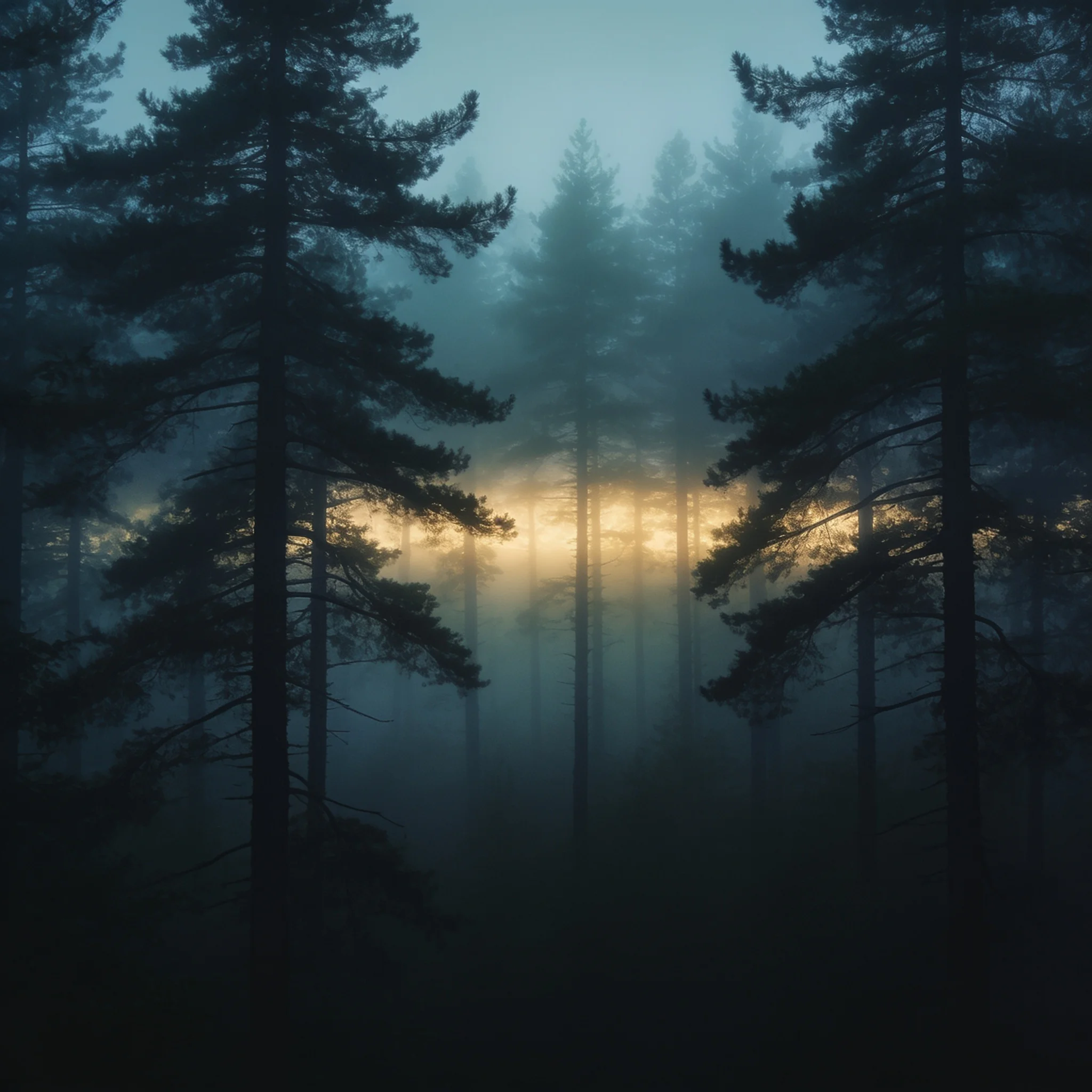
Example prompt 01
Morning fog drifts sideways through the pines as the first light breaks between the trunks, camera pushes forward very slowly, dust motes catch the light, the mist thins and thickens in slow waves
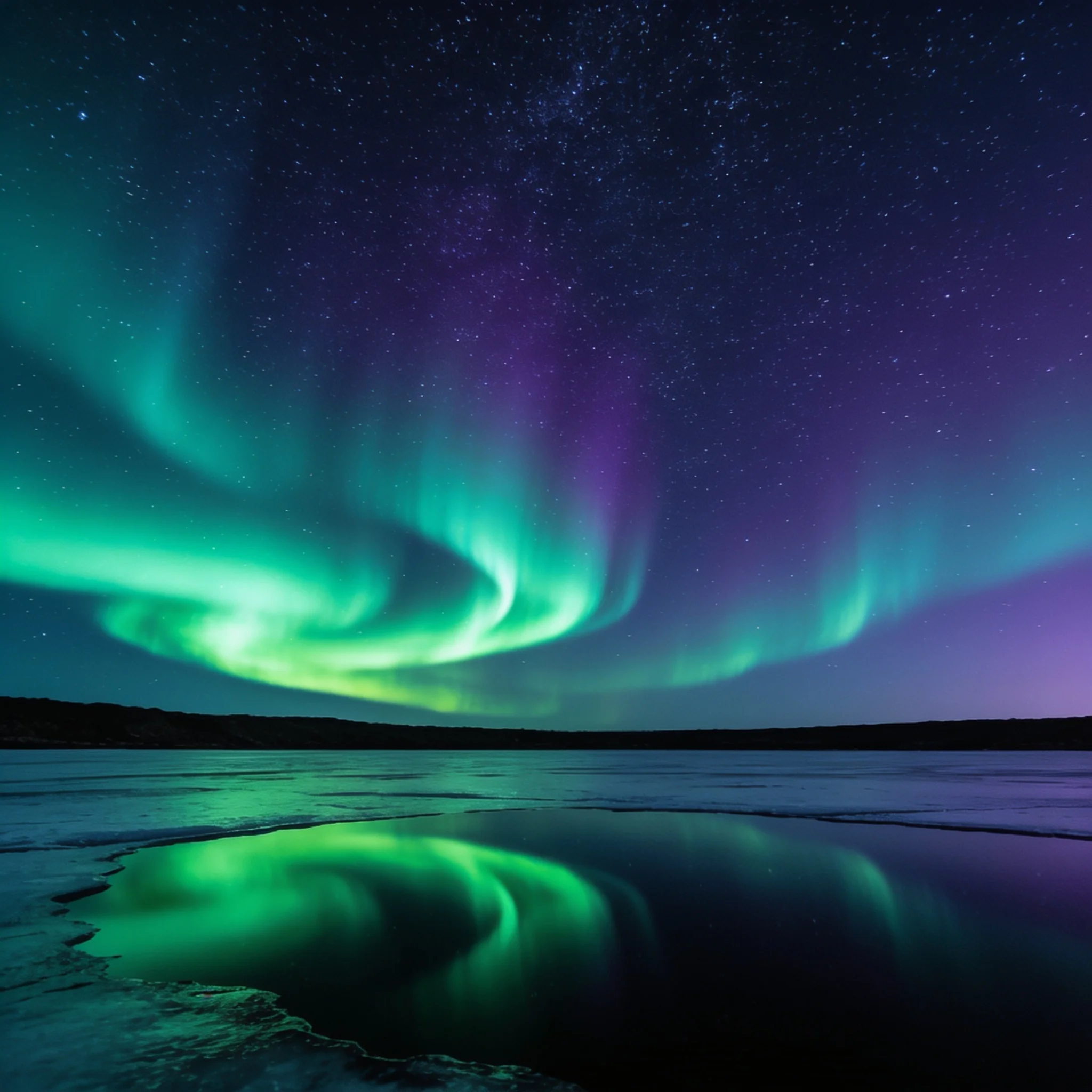
Example prompt 02
The aurora ripples and shifts color across the sky, its reflection shivers on the black water, faint ice cracks drift past the lens, the stars stay locked in place while the bands move behind them
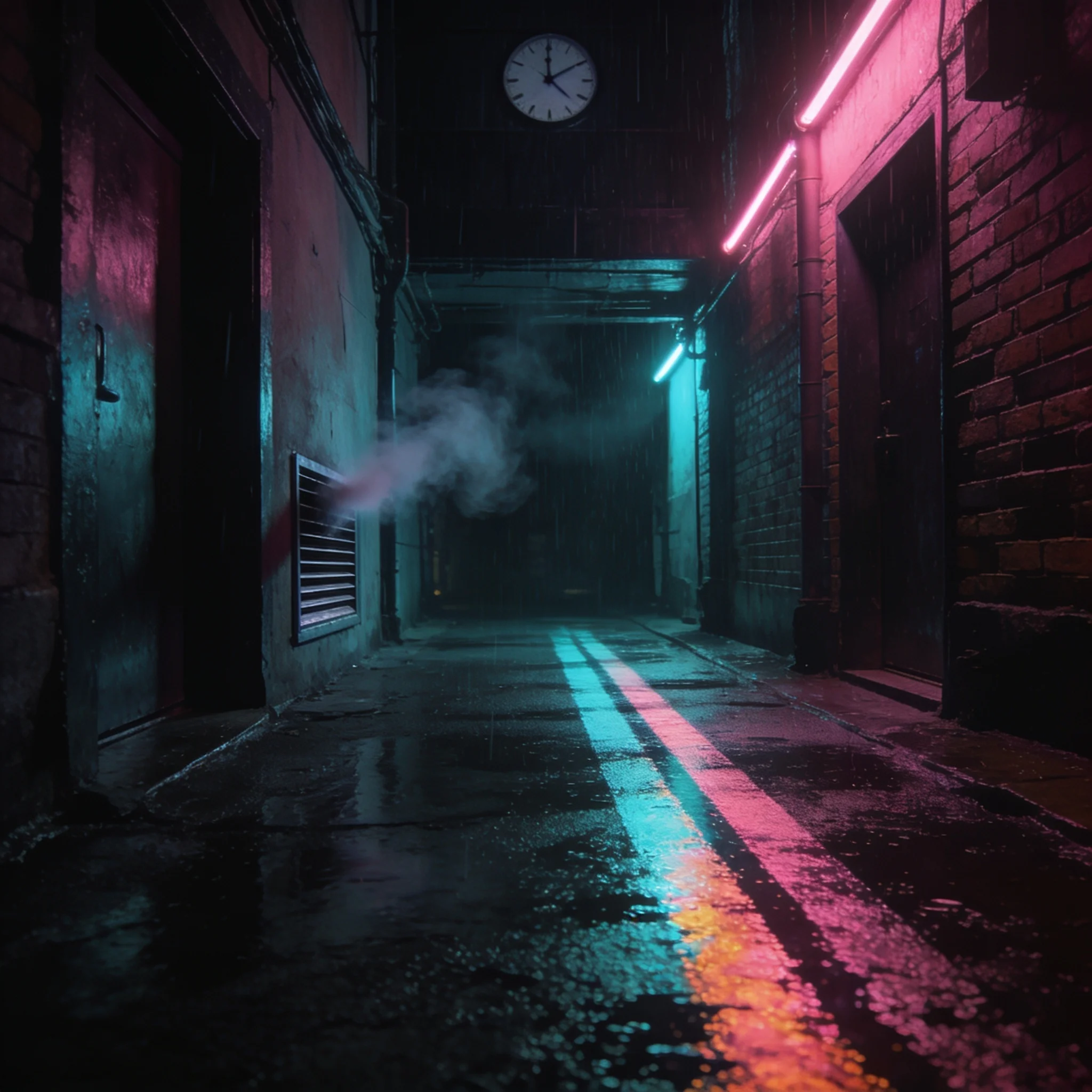
Example prompt 03
Rain falls through the neon glow and rings spread across the puddles, the signs flicker once and steady, a thin plume of steam rises from a vent, the camera holds still while the reflections ripple
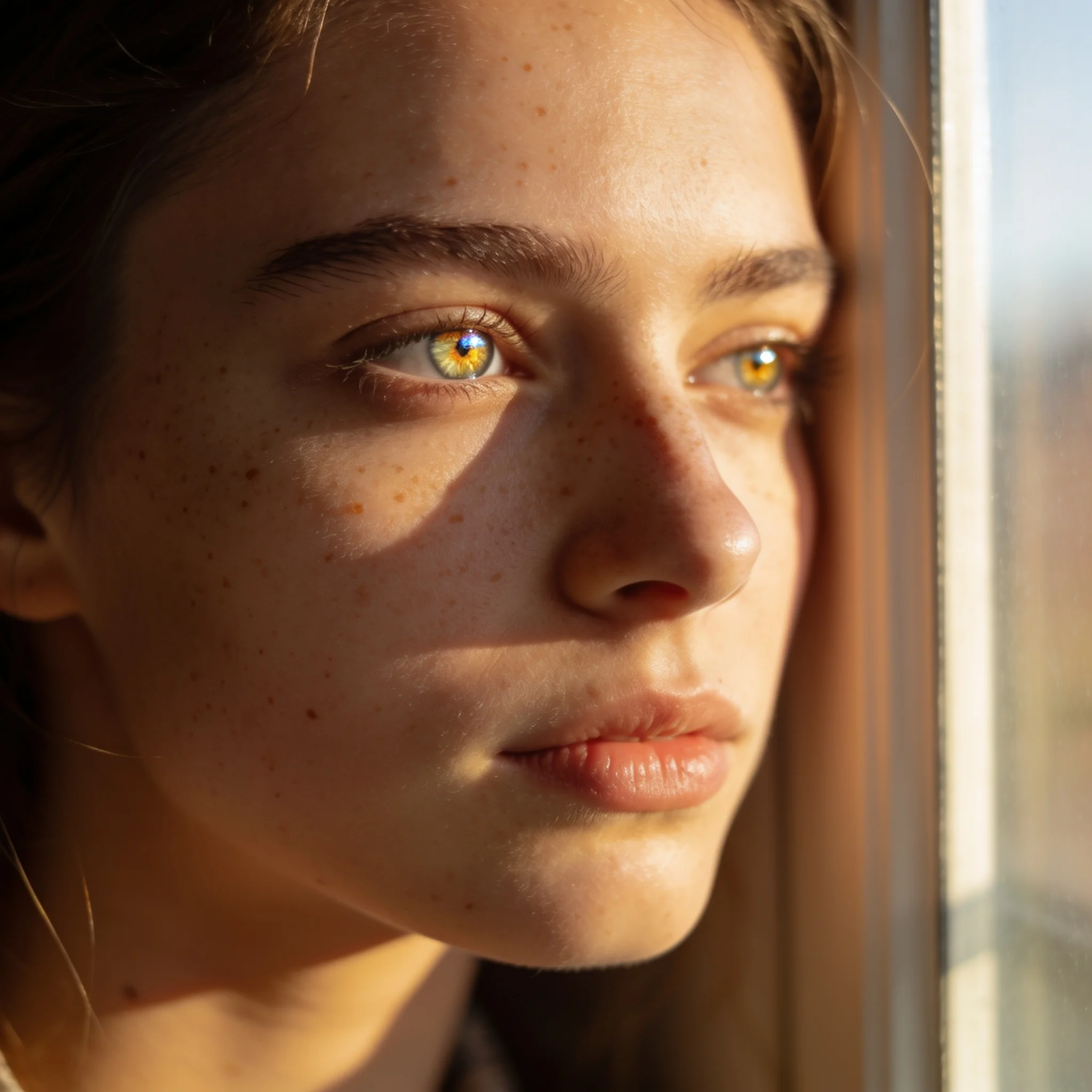
A rendered portrait: freckles, fine hair and catchlights stay intact at full size
Why Most AI Images Look Fake
The tell is rarely the subject; more often, it is the behavior of light across a surface. A generated portrait often glows from everywhere at once, with no direction and no shadow, and the skin reads like smooth plastic. Add a background that is either razor-sharp or entirely blurred and the illusion collapses the moment a viewer looks twice. We built this generator around the details that give a photograph away. You can name a light source and its direction, such as soft window light from the left or a hard rim light from behind. You can ask for an 85mm lens and shallow depth of field, and the render respects the compression and falloff that lens produces. Skin keeps pores, freckles, fine hairs and the tiny unevenness that real faces have. A typical still renders in about 10 seconds. Output reaches 2K or 4K depending on the size you choose, so a crop on the eyes still holds detail instead of smearing. If you already have a composition, upload a reference photo and the generator keeps its pose, framing or palette while your prompt changes the rest. Honesty matters here. A good photorealistic AI image can pass at a glance, and portraits and product shots are the strongest cases. Fingers with too many joints, long strings of text, and objects that behave against physics still fail sometimes. Inspect the result at full size before you send it to a client.
What Our AI Realistic Image Generator Gives You
Texture That Survives a Crop
Pores, freckles, fabric weave and wood grain stay visible at 2K and 4K. Zoom into a face or a product label and the surface keeps its structure instead of turning smooth.
Light You Control by Name
Rembrandt, split, rim, butterfly, soft window light. Say which one and where it comes from. Shadows fall in the right direction, and the subject stops glowing from every angle.
Camera and Lens Cues
Mention a 35mm, 50mm or 85mm lens, a low angle, or shallow depth of field. The render matches the compression and background falloff those choices create in a real photograph.
Reference Photo Support
Upload a JPG or PNG to lock the composition, pose or color palette. Keep the parts you like and rewrite the rest in the prompt. Works for portraits, products and interiors.
Renders in About 10 Seconds
Most stills finish in roughly ten seconds. Preview the result, adjust one clause, and run it again. You can compare variations without waiting on a long batch queue.
Still to Motion
When the image is right, animate it into a short clip for a story or a product page. The same scene description carries over, so the motion does not contradict the still.
How to Generate a Realistic Image
Describe the Shot
Name the subject, the setting, the time of day and the direction of the light. One scene per prompt works better than three. Say what the camera is doing if the framing matters.
Add a Reference Photo
Optional. Upload an image to hold a face, a pose or a layout. Without a reference, the prompt does all the work and the result is a fresh composition each run.
Choose Size and Shape
Pick 2K or 4K, then a ratio that fits the destination: 1:1 for a feed post, 9:16 for a story, 16:9 for a banner, 21:9 for an ultrawide frame.
Review, Reroll, Download
Check hands, eyes, text and reflections at full size. Reroll if something is off. Download the still as an image file. Free renders carry a small corner mark; paid renders remove it.

Where Realistic Renders Pay Off
Portraits and Headshots
Actor reels, team pages and profile photos need consistent light and believable skin. Generate a set with the same light direction and lens so the images sit together. For a real person, use their own photo as the reference and get consent before publishing.
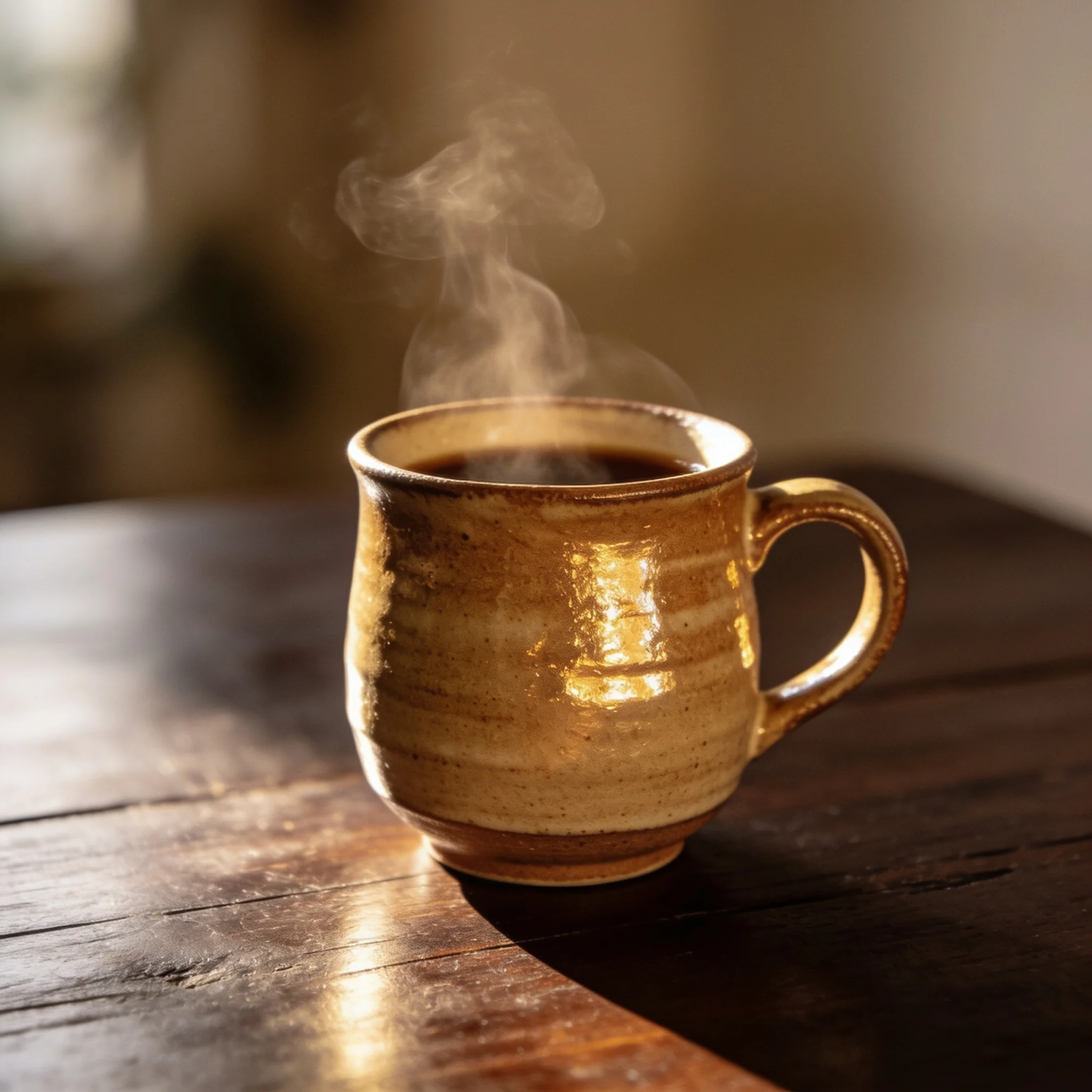
Product and E-commerce Shots
A ceramic mug with visible glaze, a sneaker with fabric texture, a bottle with a clean label. Studio light and a shallow depth of field separate the product from the background. 4K output leaves room to crop for a marketplace grid.
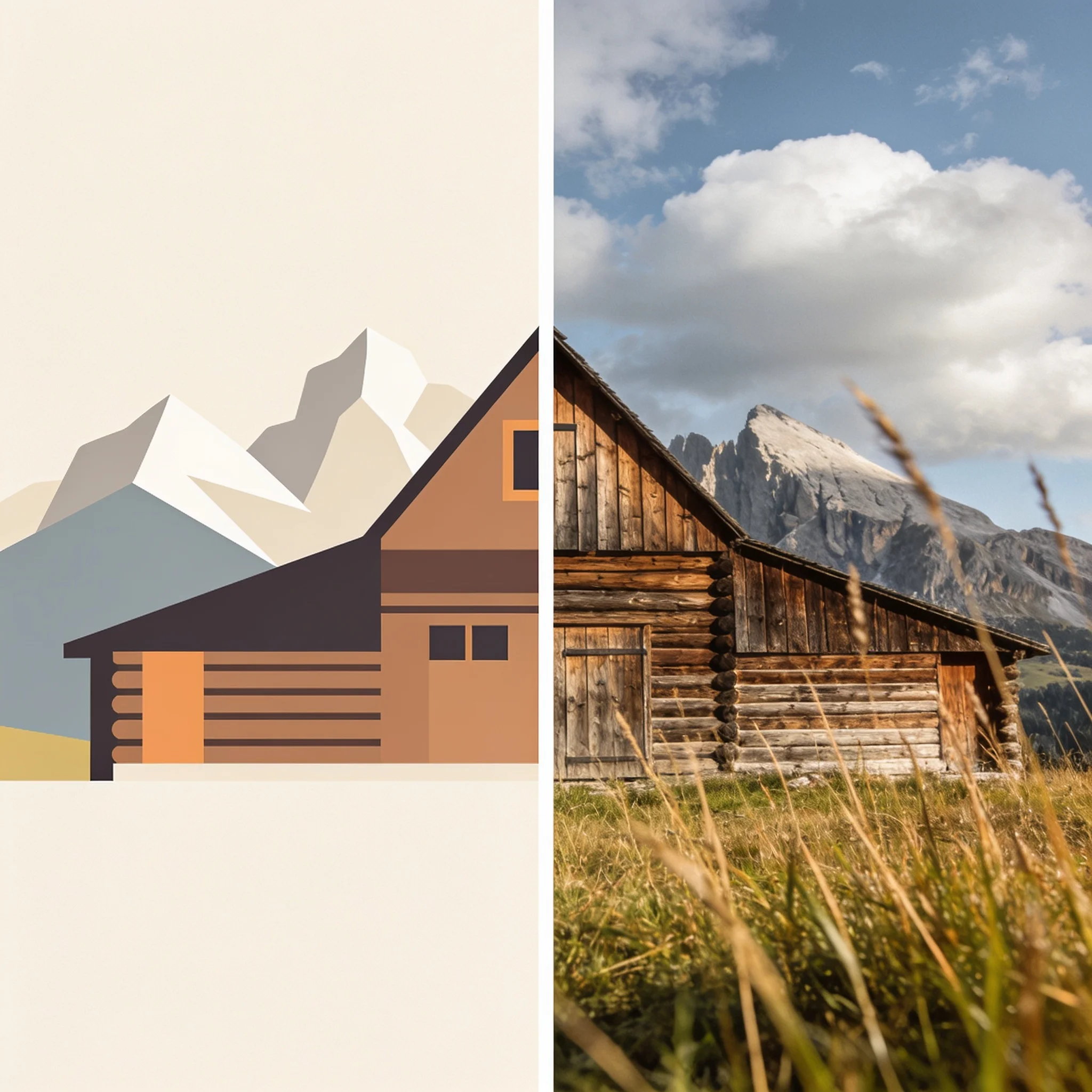
Campaign and Social Visuals
The same scene can ship at 9:16 for a story, 1:1 for a feed and 16:9 for a banner. Render each ratio from the same prompt instead of cropping one square into three shapes and losing the composition.
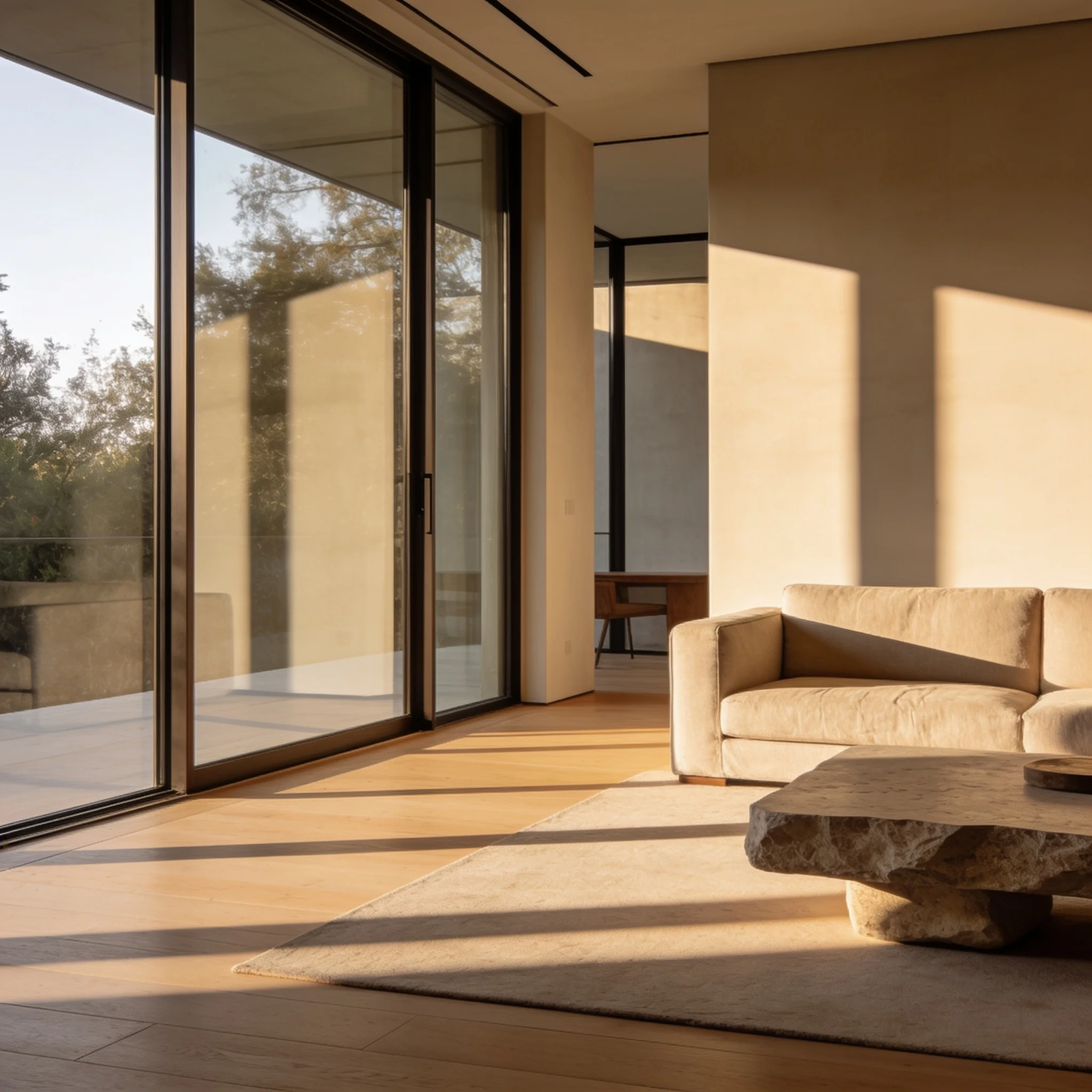
Interiors and Concept Frames
Show a client a room with the right materials and window light before anyone books a shoot. A reference photo holds the layout while the prompt changes finishes, furniture and time of day.
Explore related tools
Choose the tool that matches your next step.
Prompt Patterns That Add Realism
Four habits do most of the work. Each one costs a sentence, and each one removes a specific artificial tell.
Name One Light Source
Pick a direction and a quality: hard afternoon sun from the right, soft window light from the left, a rim light behind the shoulders. One source is more convincing than five.
Give the Camera Something to Do
A lens, an angle and a distance tell the render how much background to blur. An 85mm portrait at chest height looks different from a 24mm street shot, and the model can tell.
Describe Imperfections
Freckles, a small scar, flyaway hairs, dust on a shelf, water spots on a windshield. Realism lives in the flaws. A perfectly clean surface reads as a rendering.
Keep the Scene Small
One subject, one moment, one action. If you stack a costume, a crowd, a reflection and a weather event, the model spreads its attention and something drifts out of place.
Render a Photograph, Not a Painting
Describe the light and the lens, then check the detail at full size. Your first realistic image takes about ten seconds.