
Turn Your Stills Into Shots for an AI Music Video
Most tools make you describe a whole song before you see anything. This one starts from the frame you already have: a press photo, album art, a still from the shoot. You write the motion, we render it, then you cut the clips against your track. Free renders carry a watermark; paid ones do not.
Start with a real example
These are the prompts paired with this page’s examples. Open the generator, choose an example, then adjust one detail at a time.
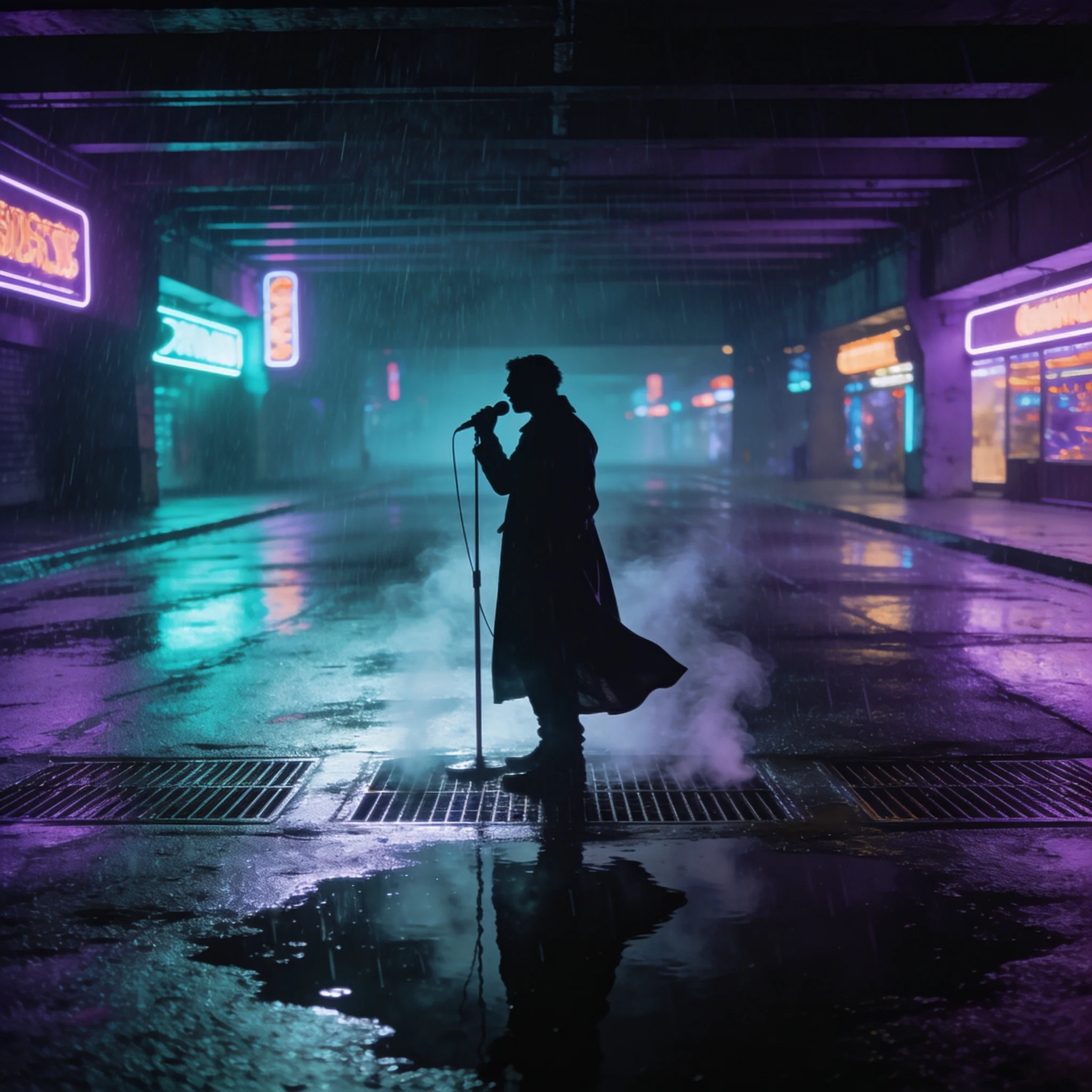
Example prompt 01
Slow dolly push-in toward the singer, rain streaks fall continuously, neon signs flicker, steam drifts across the ground

Example prompt 02
Camera tracks low alongside the car, heat shimmer warps the horizon, dust blows across the frame, sunlight flares off the windshield
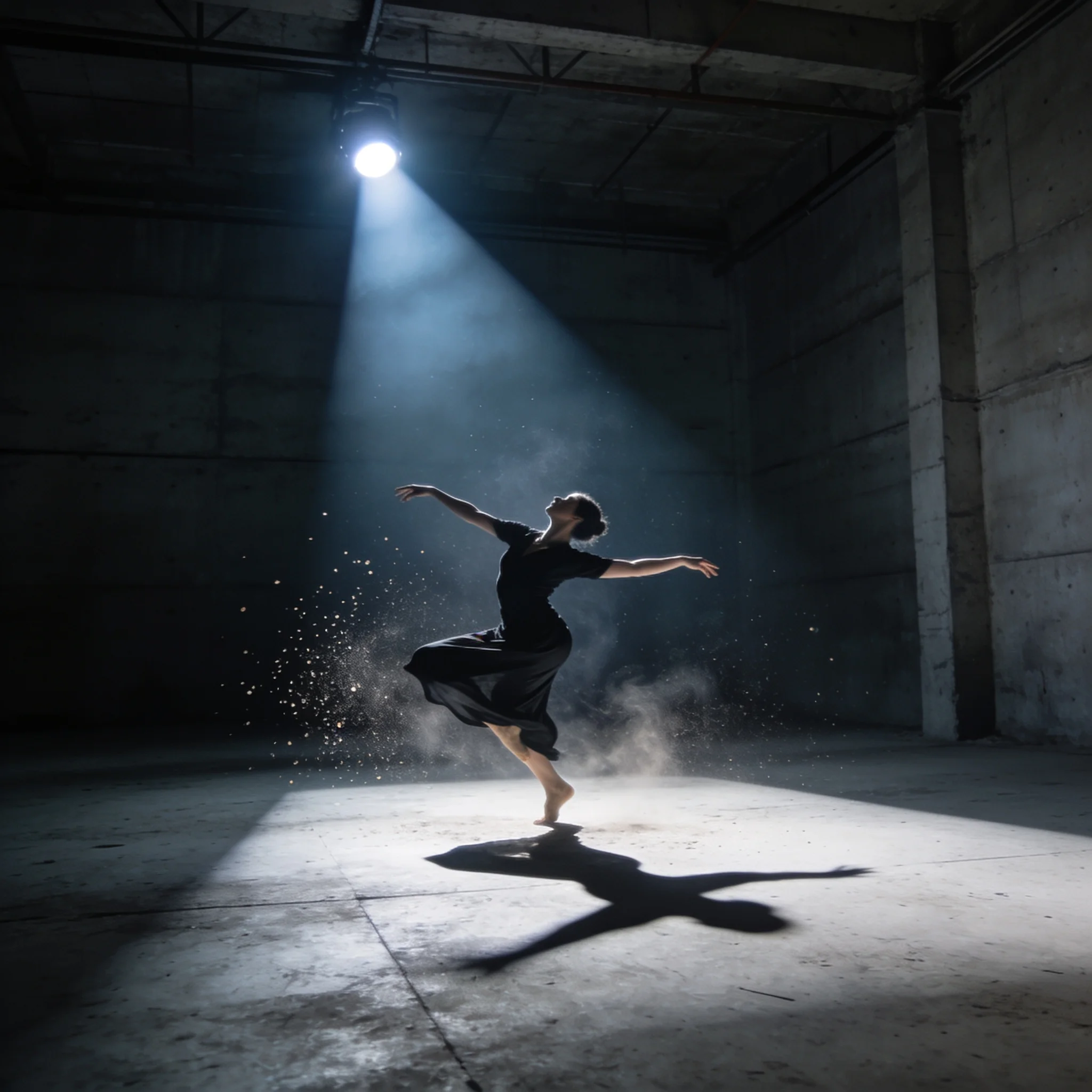
Example prompt 03
Camera orbits the dancer, dust motes swirl through the spotlight, fabric snaps with the spin, shadows sweep across the walls
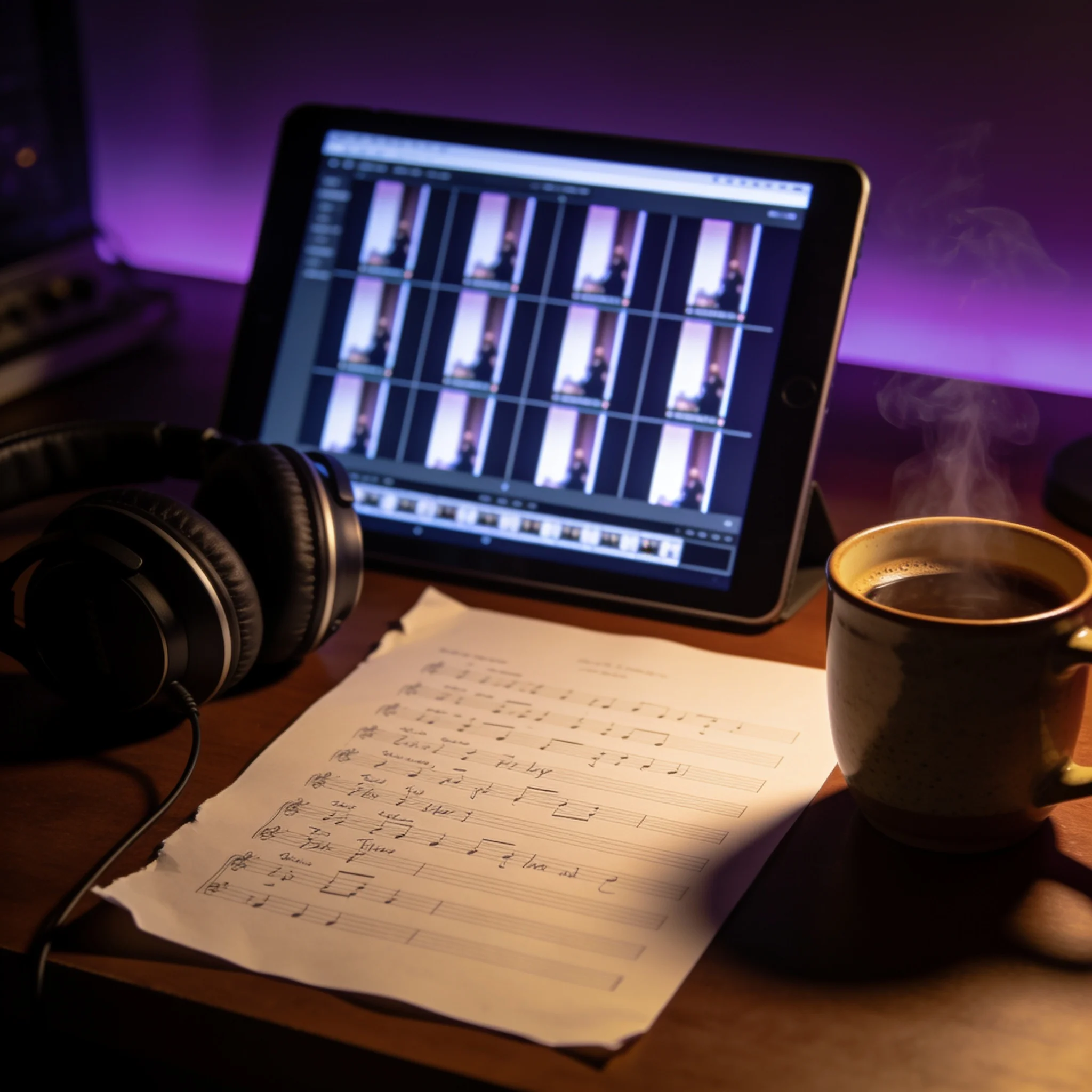
A shot list, beat by beat, built from stills you already own.
An AI Music Video Flow Built Around Your Own Footage
Every artist has a folder like this one. Press shots from last year, unused album art, phone stills from a night out that ran long. An AI music video generator is at its most useful when it can pick those frames up and give them movement, instead of handing back a stock clip of some stranger in a hoodie walking through fog. That is the whole approach here, and it produces AI music videos that look like the artist rather than like the tool. Upload one image, describe how the camera should move, and generate. The clip keeps your composition, your lighting, your face or your artwork, and adds the motion on top. Four to six seconds is normal, and that is plenty: most music videos are already cut on short beats, and an editor will trim to the transient anyway. Anyone with a workflow will notice what is missing. There is no timeline on the page, no audio upload, no automatic beat matching. We are not going to pretend otherwise. This tool makes shots, quickly and cheaply, and leaves the assembly to you or to whoever cuts your videos. That is a smaller promise than several competitors make. It is also a more honest one. What you lose in convenience, you gain in control. A push-in you timed yourself lands exactly where you wanted it, on the snare, in the second verse. A machine that guesses at the mood of a whole song cannot hit a moment that precisely.
What You Get
Image-First Generation
Start from a still you control rather than a scene a model invented, so the composition, the framing and the light you chose all survive the render intact.
Motion You Describe
Push in, orbit, crane up, let rain fall across the foreground; the prompt is a camera brief and it gets read literally, which is the only way to hit a specific beat.
Several Models
Each model moves differently, some with physical realism and some with a hand-drawn snap, so you pick the motion that suits the song instead of the one with the biggest logo.
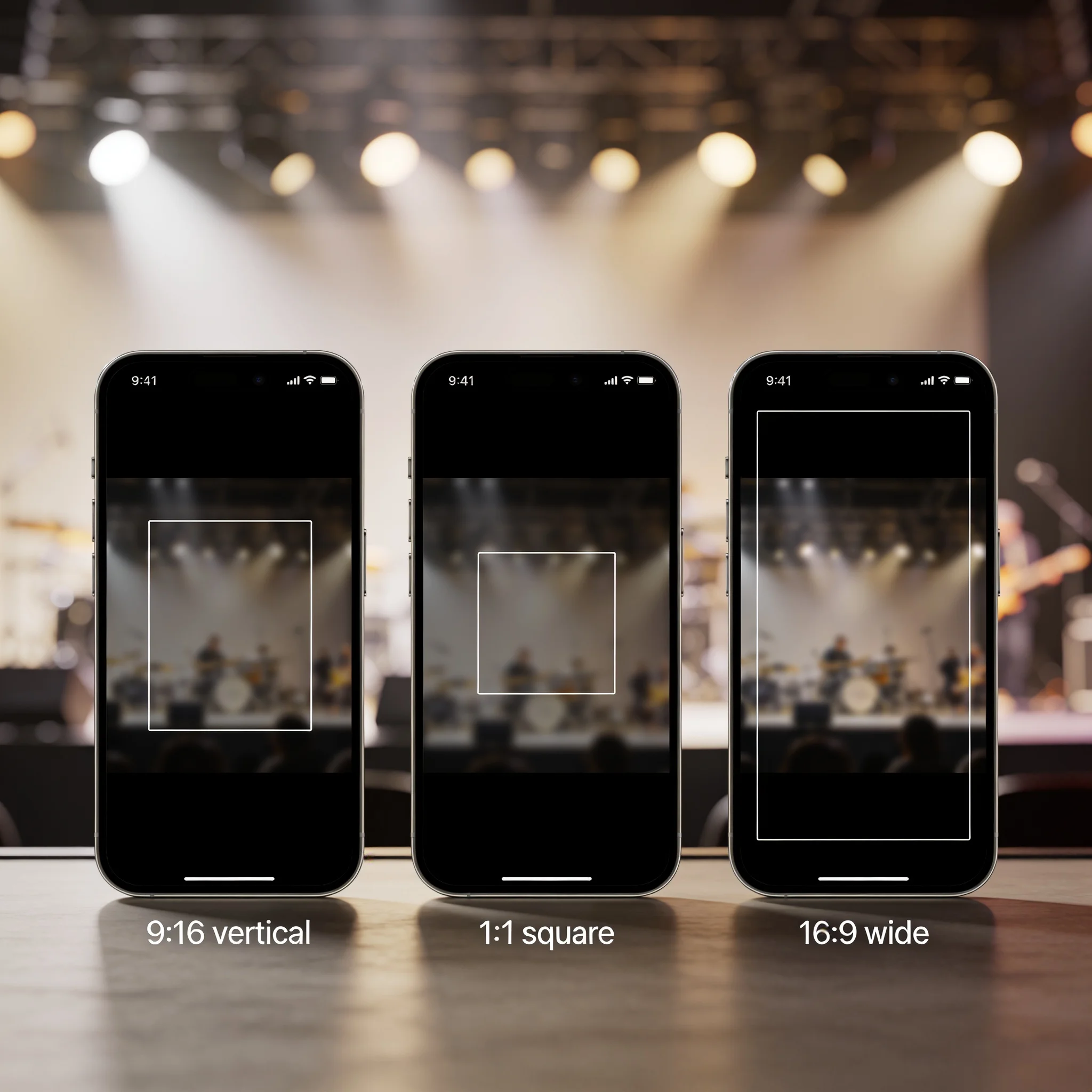
Vertical and Wide
9:16 for Reels, TikTok and Shorts, 16:9 for YouTube and for the landscape edit that eventually sits on a TV behind the bar.
MP4 Downloads
Every clip lands as a plain MP4 with no container tricks, dropping straight into Premiere, Final Cut, DaVinci or CapCut without a conversion step first.
Clean on Paid Output
Free and unpaid renders carry a watermark while paid renders do not, and the paid settings also stretch the clip length and resolution further than the free ones.
From Still Frame to Cut Clip in Four Steps
Start With a Frame
Upload a press photo, album cover or phone still, or generate a new one in image mode first. JPG, PNG and WebP all work.
Write the Camera Move
Describe what moves and how. A slow push toward the eyes. Rain across the frame. The wind pulling at a coat.
Pick a Length and Model
Set the clip length on the slider, choose a resolution, and pick the model whose motion reads closest to the track.
Download and Cut
Save the MP4, lay it on your timeline, and trim the beat in. Three or four clips usually cover a verse and chorus.
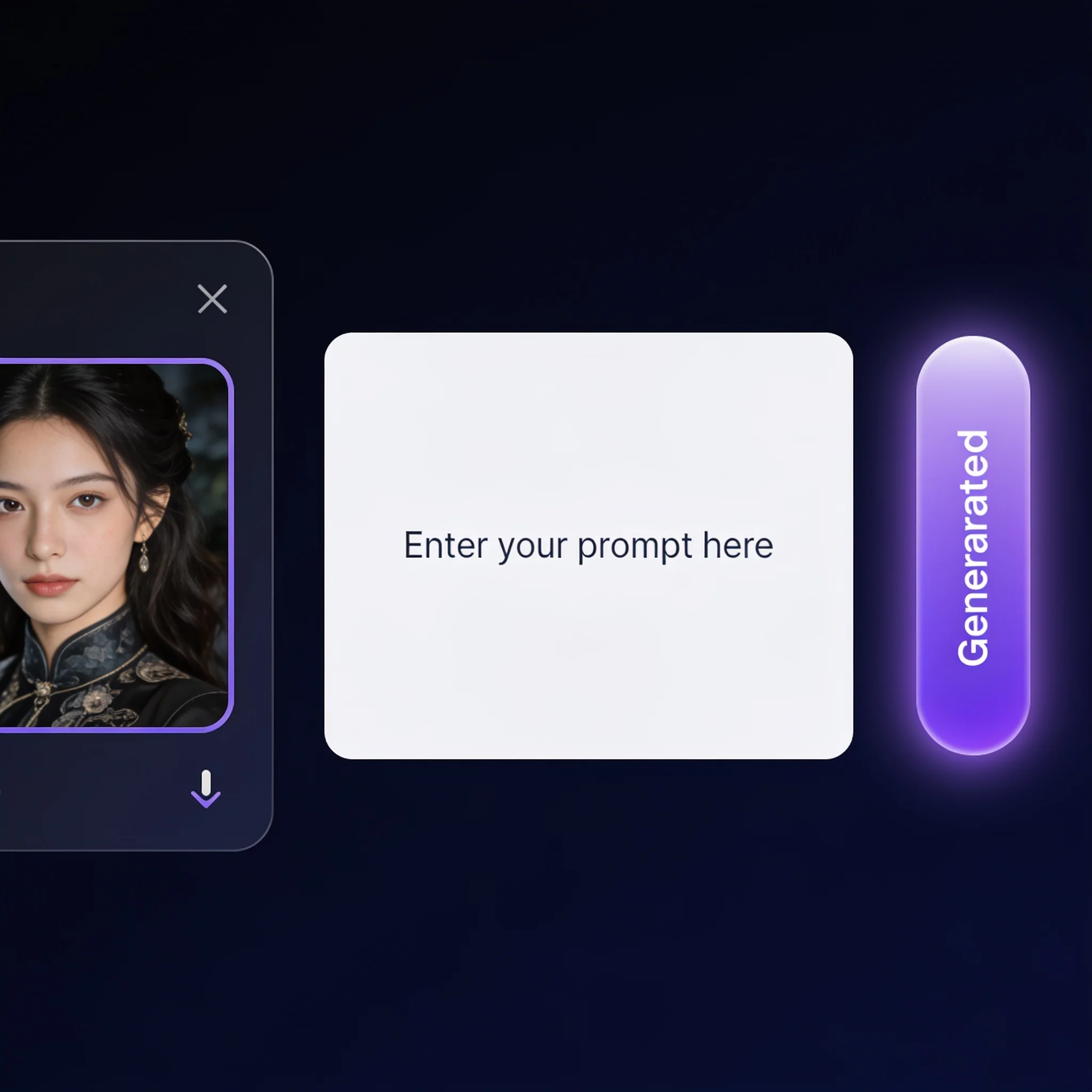
One image, one motion brief, one button. Nothing else to configure.
What Artists Use It For
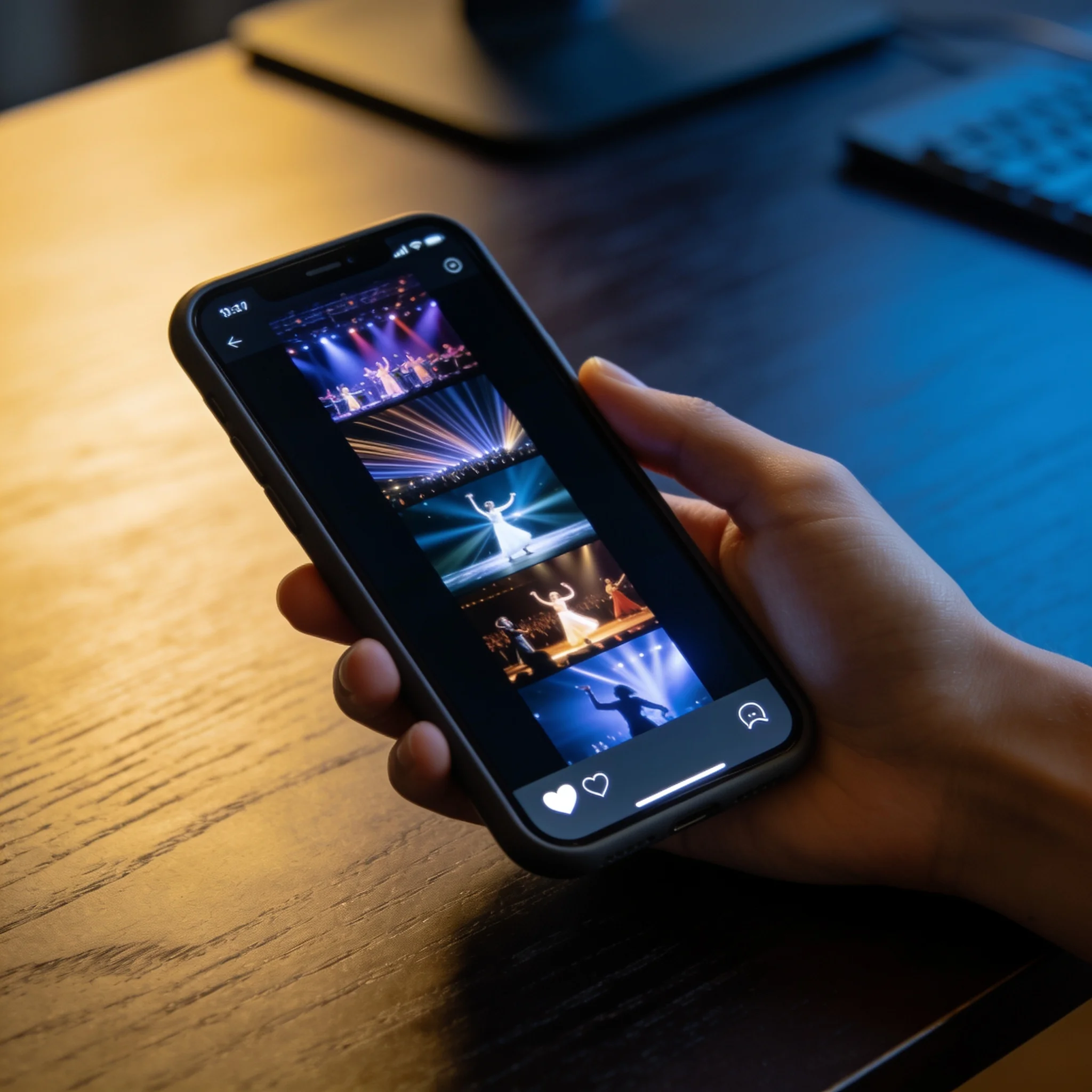
Lyric Videos on a Budget
Generate eight shots from existing art, cycle them on the beat, and type the lyrics over the top. A full lyric video without a shoot day, a rental lens or a stock library subscription that bills monthly for footage of a man in a suit shaking hands.
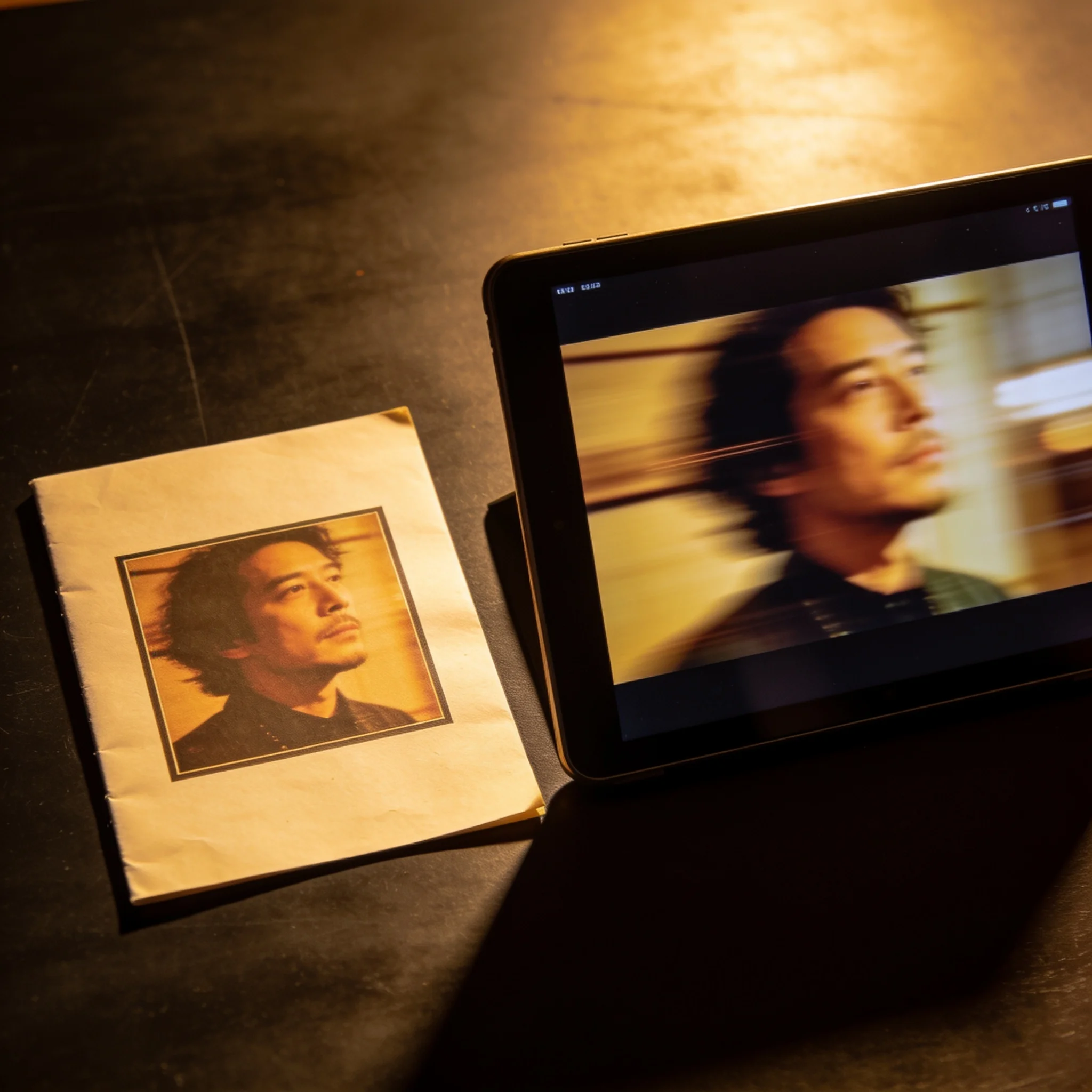
Album Art That Moves
Bring the cover up in the corner of a Story for three seconds, breathing and drifting. It reads as a designed asset rather than a flat JPEG repost, which matters when the first twelve people to see it decide whether the rest will bother.
Teasers Before Release
Two-second grabs of the hook, cut from a single press photo, which is enough to post on drop week without giving the song away before release.
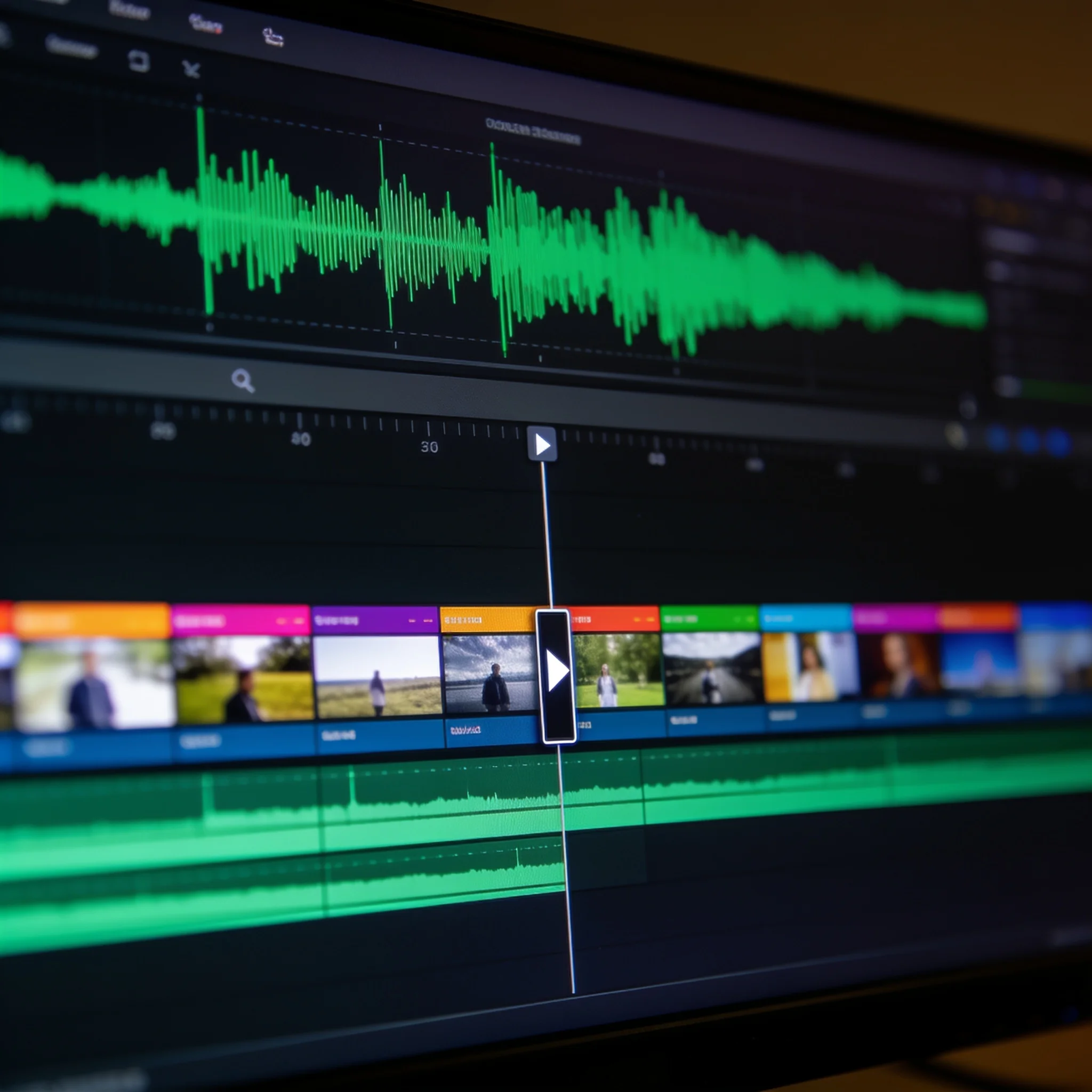
Looping Backdrops
Small venue shows and Twitch sets need moving backdrops that stay out of the way. Render a few slow, dark clips, loop them behind the set, and keep the brightness low so the room still reads as a room.
Explore related tools
Choose the tool that matches your next step.
Prompt Habits That Read as Direction, Not Vibe
The brief is camera work, not atmosphere. Name the move, name what is in the air, and keep the subject still. Vague mood words give vague drift, and drift is the fastest way to make a render look like a render.
One Move Per Clip
A push-in plus an orbit plus a pan gives the model too much to solve in four seconds, so commit to a single move and let the cut supply the energy instead.
Add an Element
Rain, dust, confetti, smoke, steam: a drifting particle gives the render something to track, hides small artefacts at the edges and makes an empty frame feel inhabited.
Slow It Down
Write "slow" and "gradual" into the prompt, because fast motion forced into four seconds turns into a jolt while slow motion with a soft ease reads as a deliberate edit.
Keep Faces Small
A wide or medium frame holds together far better than a tight crop, so save the close-up for the still and cut away before the generated clip has time to drift.
Match Light to Mood
Neon, hard spotlight, golden hour, flat overcast: matching the light direction across the clips you generate is the cheapest possible way to make unrelated shots feel like one video.
Generate in Order
Render the shots in story order and name the files by their position in the cut, which sounds fussy, and it saves a sorting pass later when forty clips sit in a bin with the sequence only in your head.
Give Your Best Still a Second Life
Upload one photo, describe the move, and watch it render. The trial needs no account and no card.